**Prerequisites:** Before creating a Stock Entry transaction, ensure the **Item,** [**Warehouse**](https://guides.smurps.com/books/smurps-trp/page/warehouse-maintenance), **Project, Customer** and **Employee** are created.
##### Create New Stock Entry***Document Path:** Stock > Stock Transactions > Stock Entry*
1\. Go to Stock Entry List View and click **Add Stock Entry** [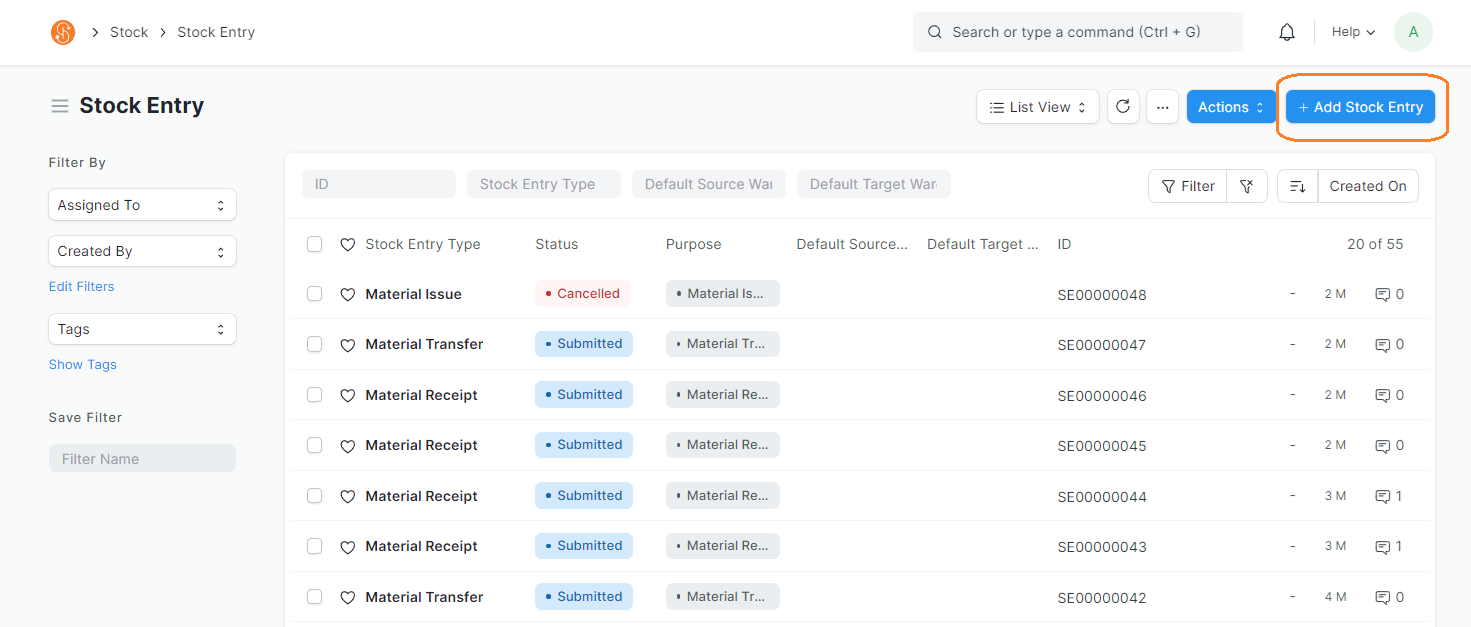](https://guides.smurps.com/uploads/images/gallery/2024-07/QWUimage.png) 2\. In the Stock Entry, choose the following**Note:** Fields with a red asterisk indicates that it is Mandatory
- Series: Defaulted to SE.######## - Stock Entry Type: Material Transfer - If the material is being transferred from different warehouses in the system, for example if an item is transferred from different warehouse locations or racks in the warehouse. The Items will be issued out from the Source Warehouse and stock will be increase in the Target Warehouse - Posting Date: Set to current date - Posting Time: Set to current time - Edit Posting Date and Time: To edit the Posting Date and Time, tick this checkbox - Employee ID: Select Employee ID that is in charge of transferring the goods - This is optional [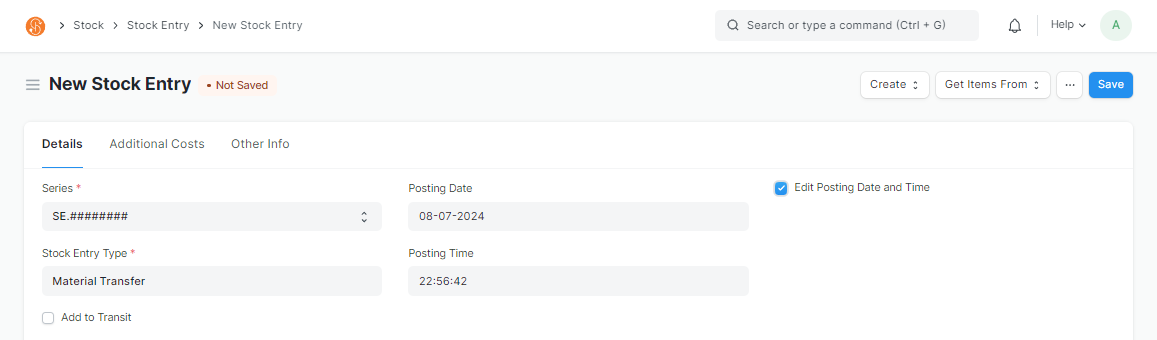](https://guides.smurps.com/uploads/images/gallery/2024-07/Awuimage.png) - Default Source Warehouse: If all Items are being transferred from the same Warehouse (Storage Location), you may use the Default Source Warehouse field. When selecting this, it will auto-select the Source Warehouse in the Items table. If Items are issued out from **different** Warehouses, you may select them in the Source Warehouse in the Item table - Default Target Warehouse: If all Items are being brought into the same Warehouse (Storage Location), you may use the Default Target Warehouse field. When selecting this, it will auto-select the Target Warehouse in the Items table. If Items are bring brought into **different** Warehouses, you may select them in the Target Warehouse in the Item table [](https://guides.smurps.com/uploads/images/gallery/2024-07/N41image.png) - Scan Barcode: You may select the Items to be brought in, by Scanning The Item Code QR Code**Note:** Item's Item Code must be maintained in the Item's Barcode field
- Item Code: Items that are transferred can be selected in the Item Code field in the Items table - Qty: Enter the quantity being transferred. If Items are scanned via Scan Barcode, the Qty will adjust accordingly as per the no. of scans. However, the Qty can be adjusted manually as well - Add Row Button: To add more line items in the Items table. [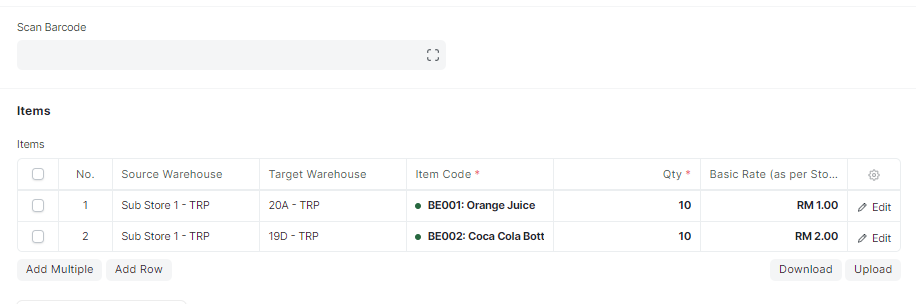](https://guides.smurps.com/uploads/images/gallery/2024-07/h9oimage.png) - To delete rows, check the checkbox on the left and a **Delete** button will appear. Click on the button to delete the row [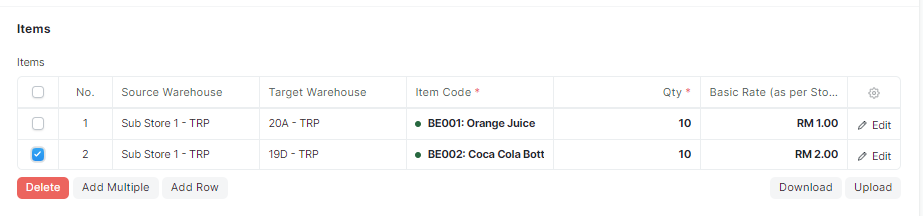](https://guides.smurps.com/uploads/images/gallery/2024-07/S25image.png) - Remarks: You have an option of adding in Remarks in the Stock Entry as well. Go to the **Other Info** Tab to find the Remarks field [](https://guides.smurps.com/uploads/images/gallery/2024-07/U49image.png) 3\. Save Stock Entry by clicking on **Save** [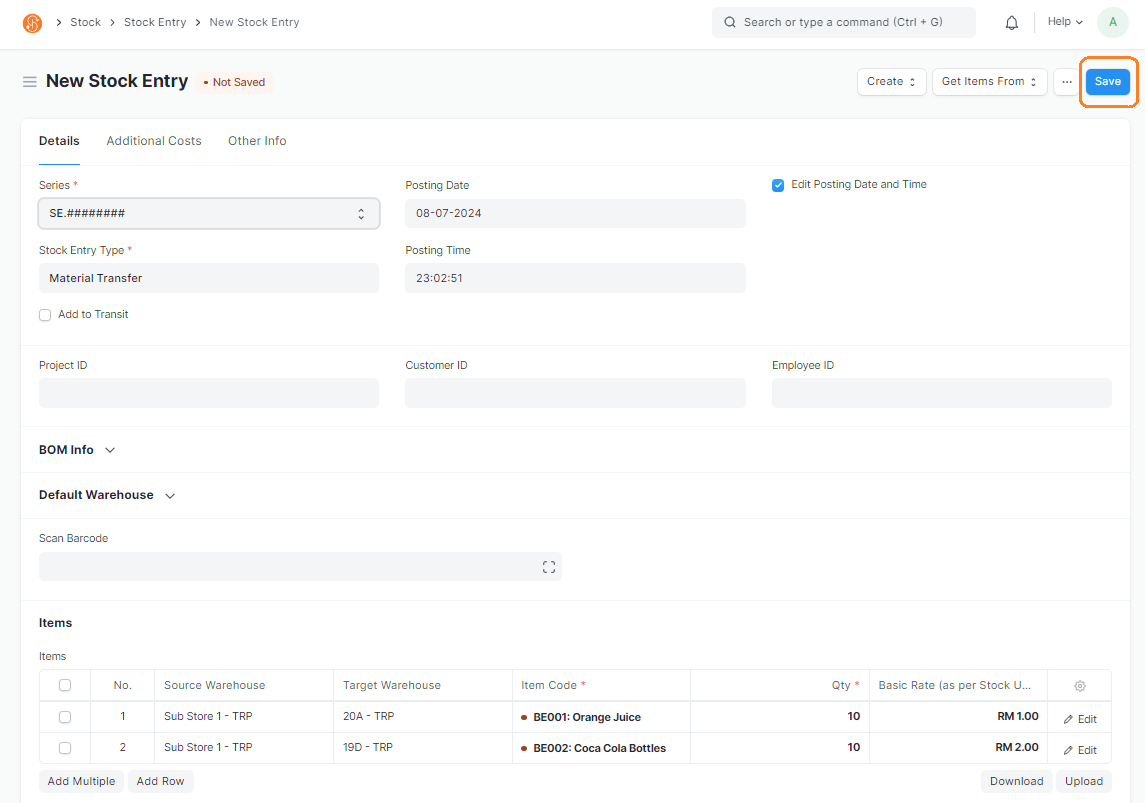](https://guides.smurps.com/uploads/images/gallery/2024-07/dXSimage.png) - If Stock Entry is successfully saved, the Stock Entry status will be changed to **Draft** and Stock Entry Document ID is created [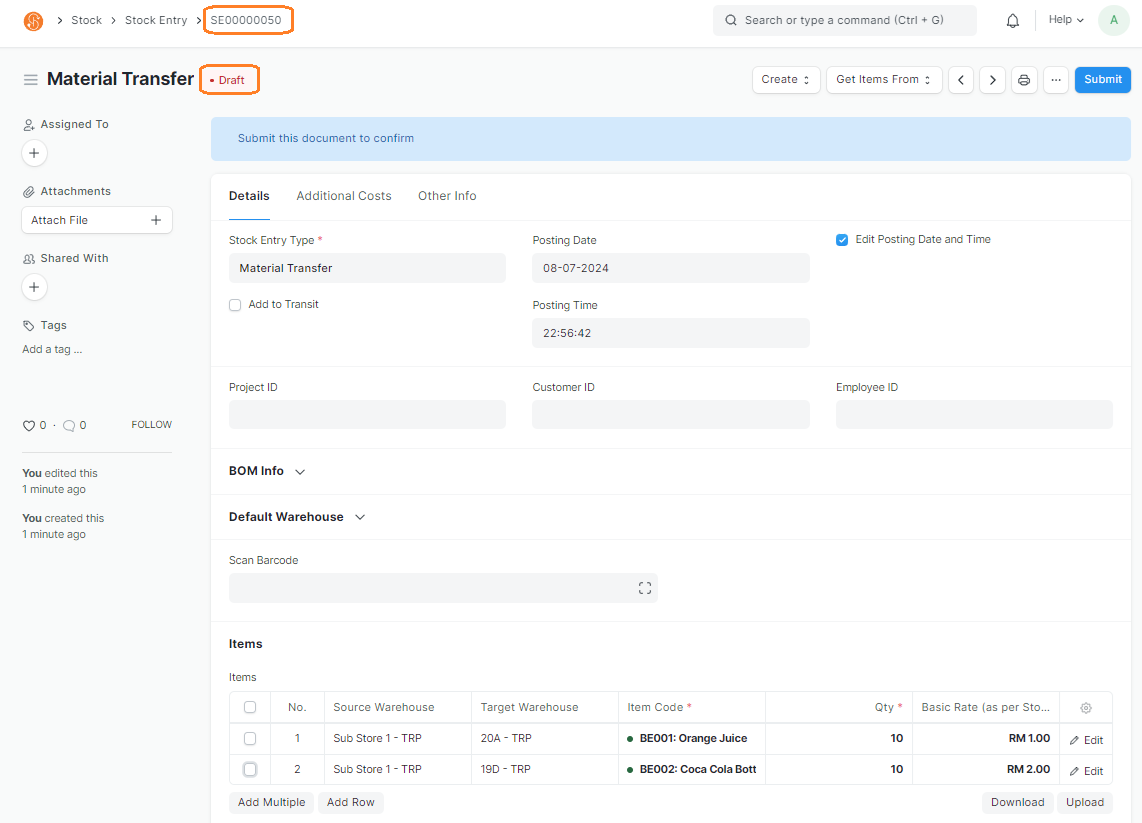](https://guides.smurps.com/uploads/images/gallery/2024-07/999image.png) 4\. Submit Stock Entry once all information is confirmed [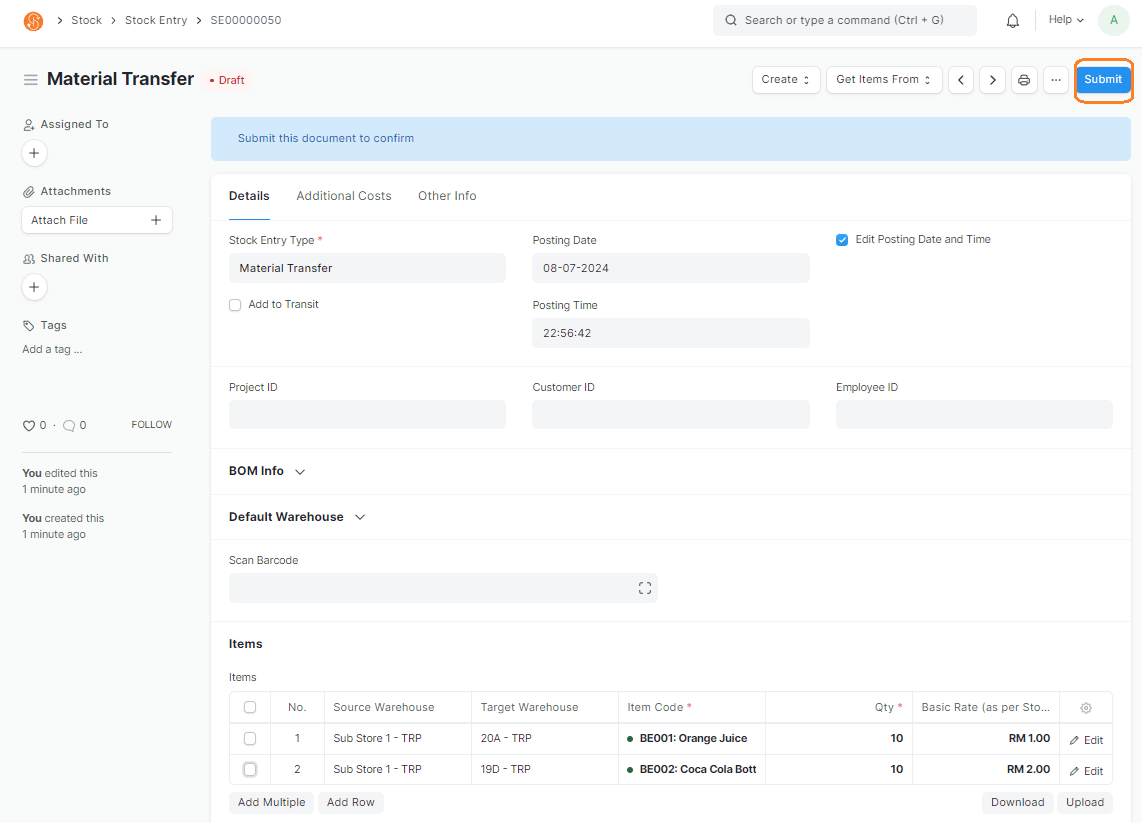](https://guides.smurps.com/uploads/images/gallery/2024-07/Ykmimage.png) 5\. Once Stock Entry is submitted, the Stock Entry status will be changed to **Submitted** 6\. **View > Stock Ledger** to view the stock movement in the Source and Targeted Warehouse [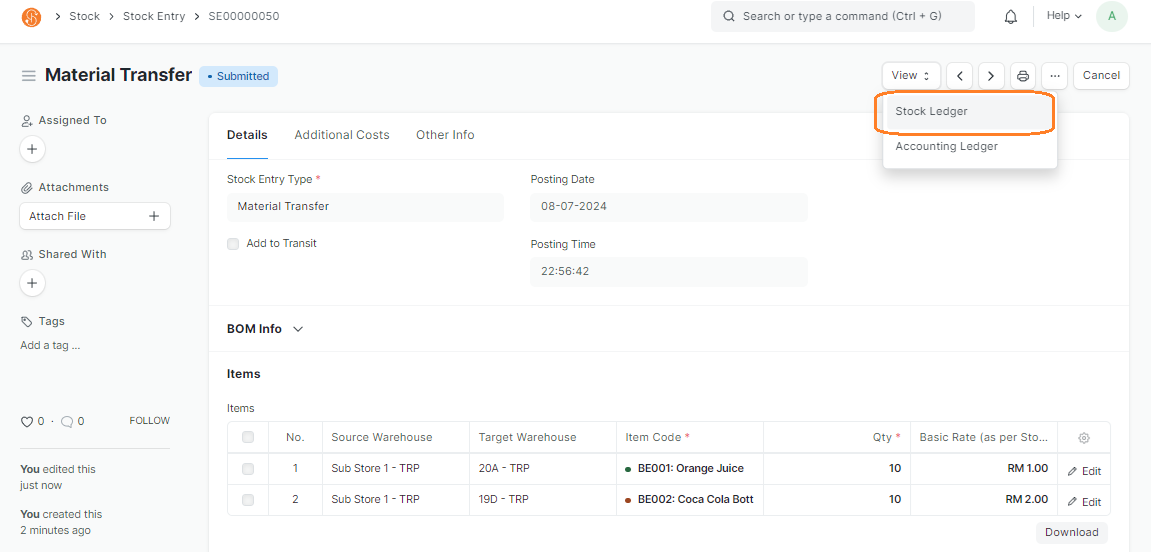](https://guides.smurps.com/uploads/images/gallery/2024-07/slcimage.png)