***Document Path:** Stock > Settings > Warehouse*
1\. In the Warehouse screen, click on the **List View > Tree**. This is to change the Warehouse view to a Tree view. *Note: It is easier to create Warehouses via Tree View as it gives the user a better visualisation of the Warehouse Structure* [](https://guides.smurps.com/uploads/images/gallery/2024-07/UeJimage.png) 2\. To create a new Warehouse, click on **Add Child** [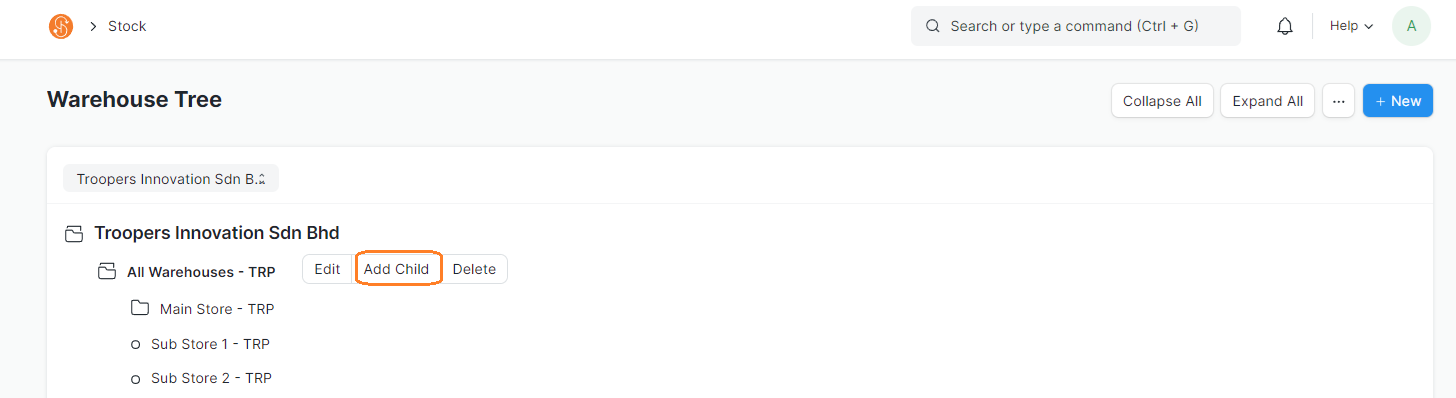](https://guides.smurps.com/uploads/images/gallery/2024-07/dk4image.png) 3\. Enter the new Warehouse Name - If you tick on 'Is Group', you can create sub-Warehouses under this group Warehouse. - Do note that Group Warehouses cannot be selected when posting transactions, i.e. Stock Entry, Delivery Note - Company is defaulted as your company - Once confirmed, click **Create New** [](https://guides.smurps.com/uploads/images/gallery/2024-07/2hrimage.png) 4\. Once a Warehouse is created, Warehouses are saved with their respective Company’s abbreviations (i.e. Sub Store - TRP). This facilitates identifying which Warehouse belongs to which company at a glance. 5\. A folder represents a Parent Warehouse, and Child Warehouse [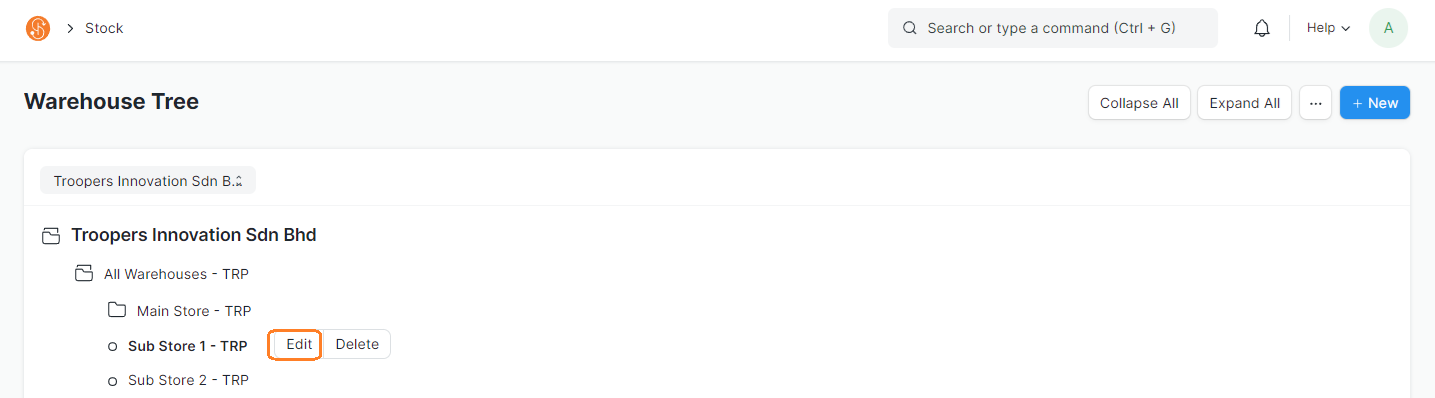](https://guides.smurps.com/uploads/images/gallery/2024-07/9xDimage.png) ##### Edit Warehouse 1\. To edit an Existing Warehouse, click on **Edit.** You may disable the Warehouse by clicking on **Disable.** However, do note that Warehouses with existing transactions **cannot** be deleted, but can be disabled [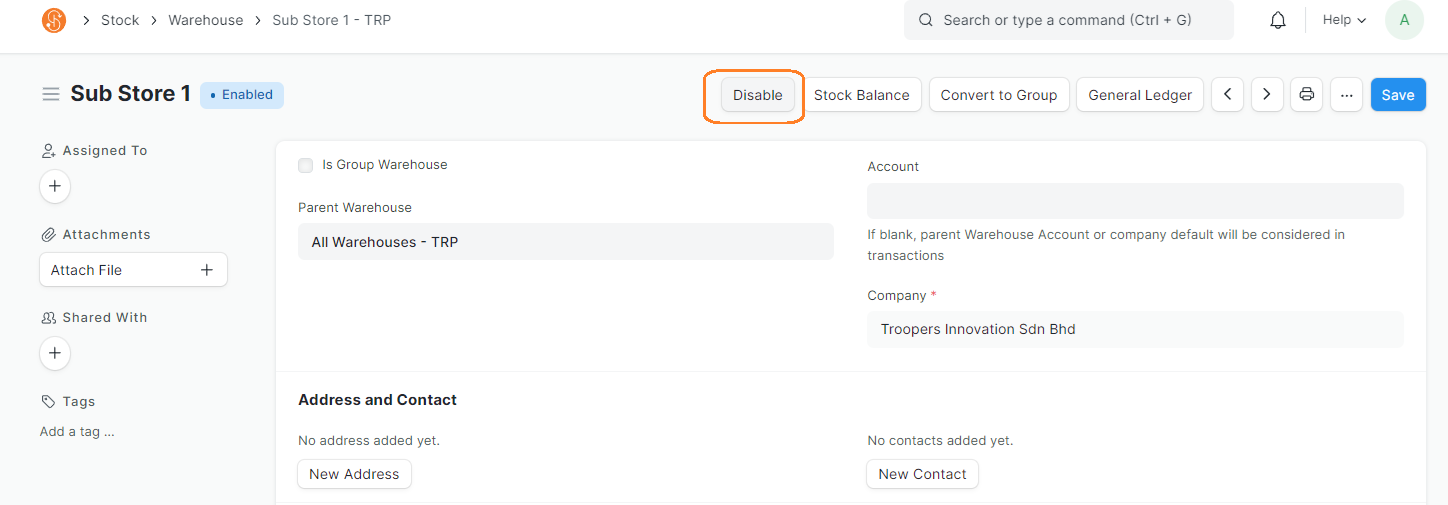](https://guides.smurps.com/uploads/images/gallery/2024-07/hmiimage.png)