Payment Entry
A Payment Entry records money received from customers or paid to suppliers. You typically create a payment entry against a sales or purchase invoice, but you can also record standalone payments like employee reimbursements.
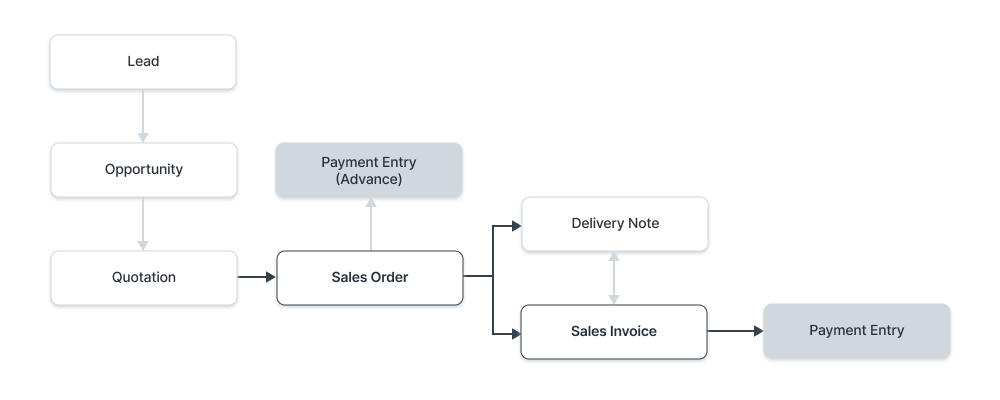
To record a payment against an invoice:
- Go to Home → Accounting → Accounts Receivable/Payable → Payment Entry and click New.
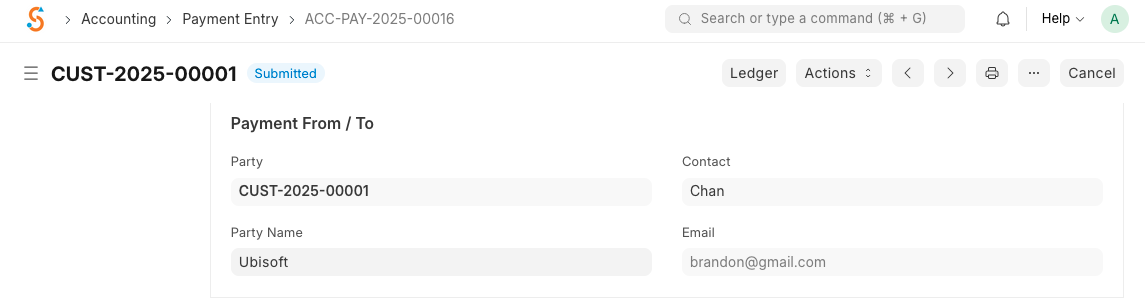
- Select the Party Type (Customer or Supplier), Party, and the invoice. The system sets the Payment Type automatically (Receive for customers, Pay for suppliers).
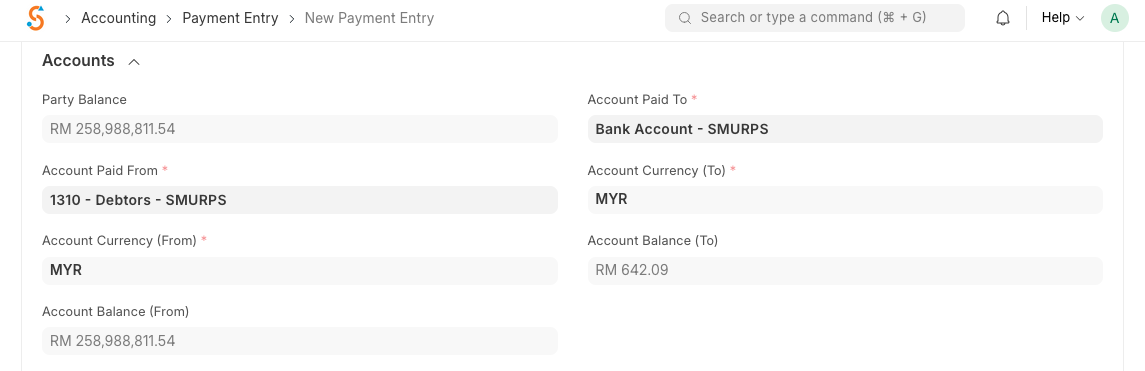
- Set the Posting Date and Mode of Payment. The Paid From/To accounts are pulled from your company settings.
- The outstanding invoice amount appears; edit Paid Amount if you’re making a partial payment. Allocate the payment to specific invoices if multiple are listed.
- Save and Submit to update the ledger and the invoice’s outstanding amount.
You can also create a payment entry without linking an invoice. Choose the party and account, enter the amount in the Allocated Amount column, and specify any deductions or write‑offs (such as currency exchange differences). The Difference Amount must be zero for submission; use the Make Difference Entry button to book the difference into a write‑off account. After submitting, the system updates the related invoice or order and reflects the payment in accounts receivable/payable.