Transactions
Order to Cash
Order-to-Cash process flows from Sales Order → Delivery Note → Sales Invoice, with taxes automatically applied at the invoice stage using the Sales Tax master data. This ensures accurate tax calculation, posting to the correct accounts, compliance, and efficient, error-free accounting throughout the sales process.
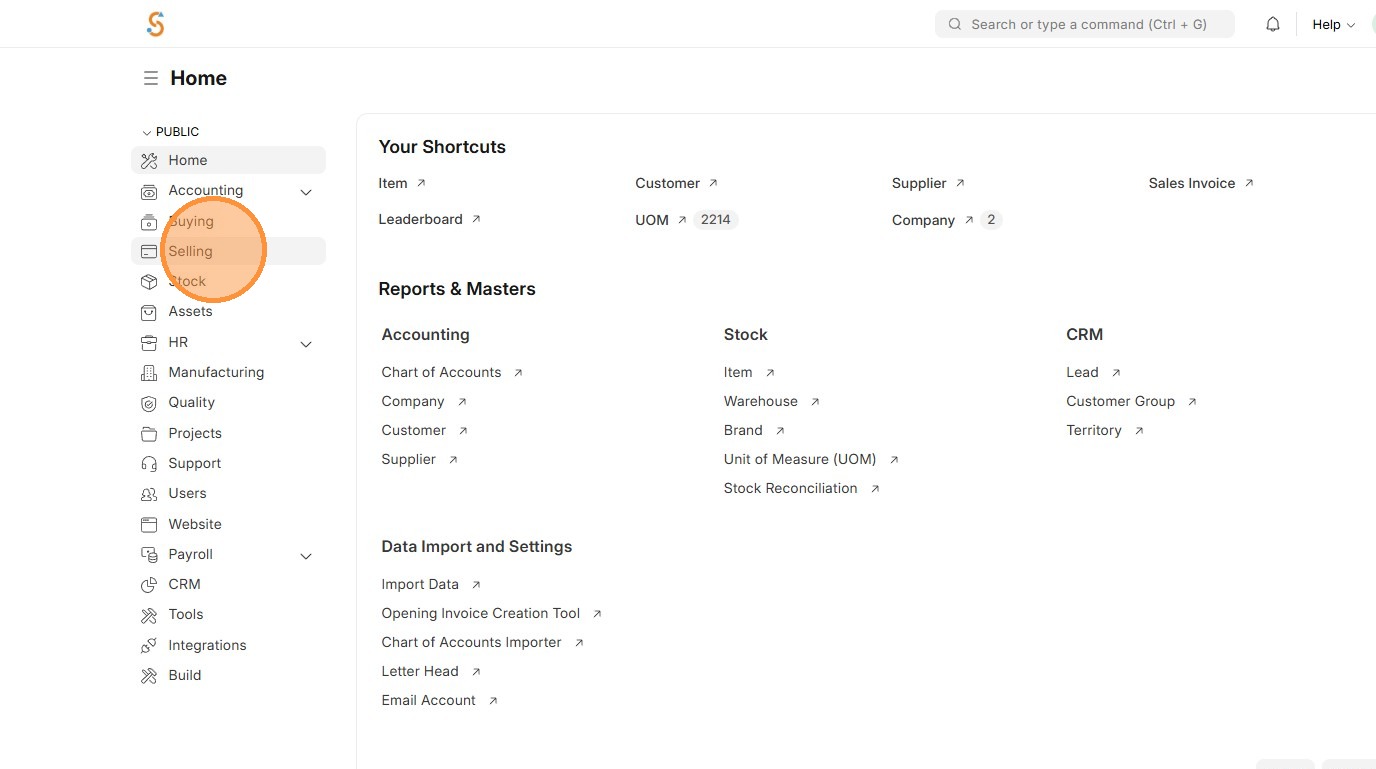
1. Click "Selling"
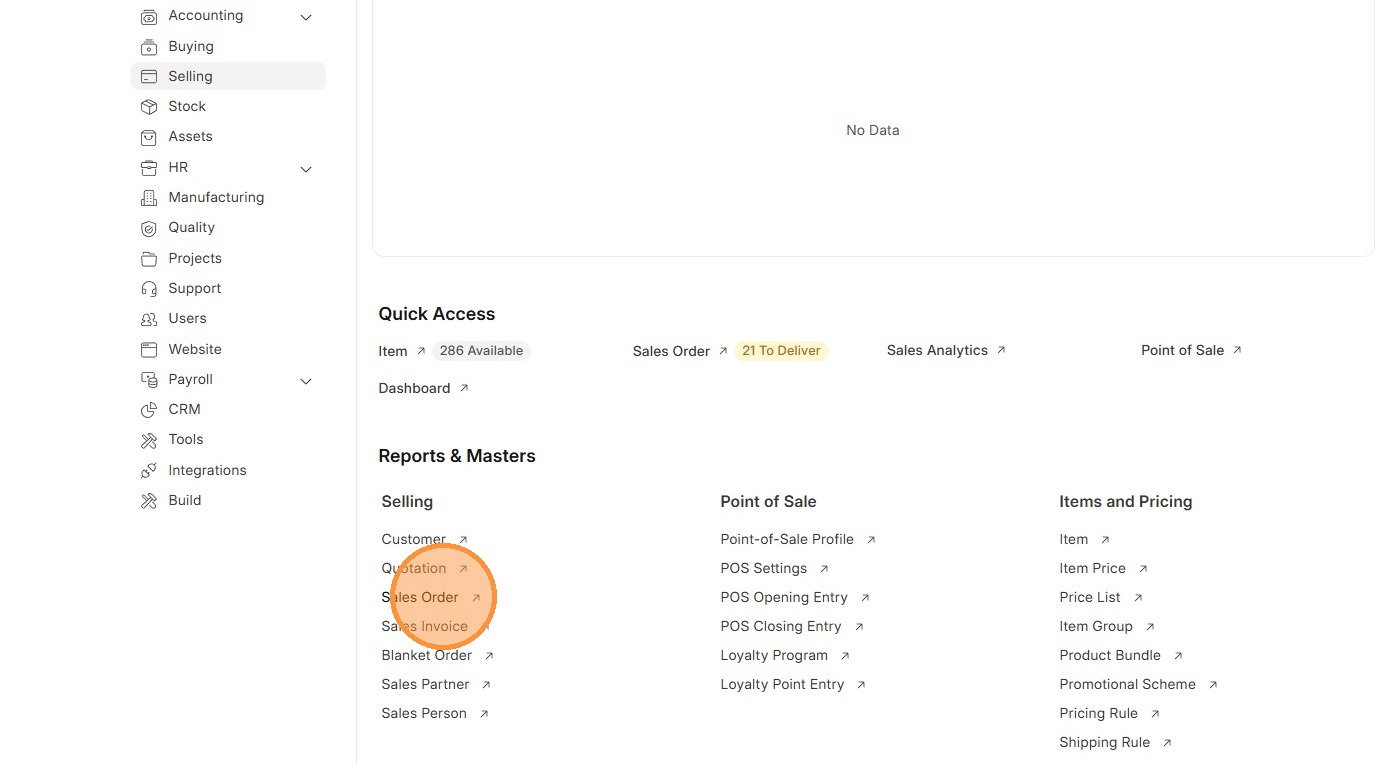
2. Click "Sales Order"
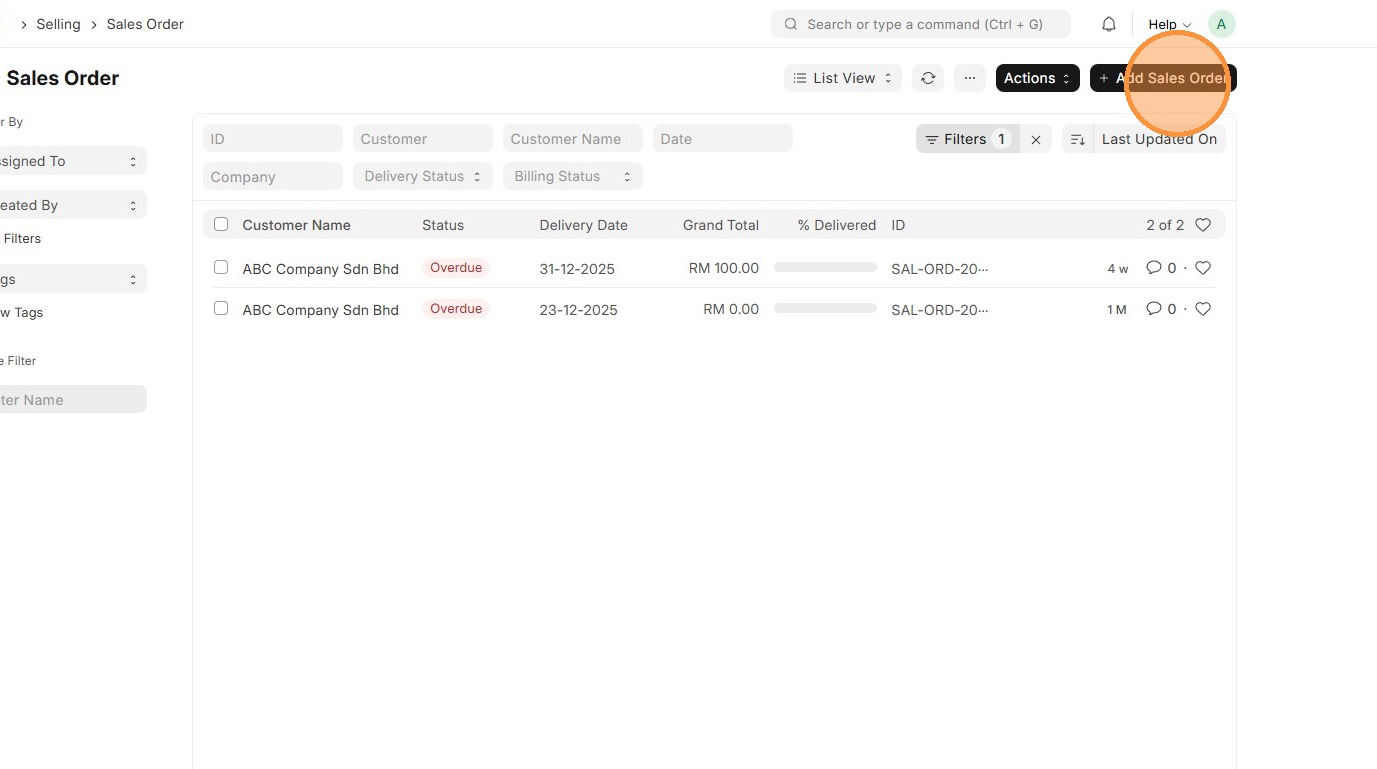
3. Click "Add Sales Order"
4. Select "Customer"
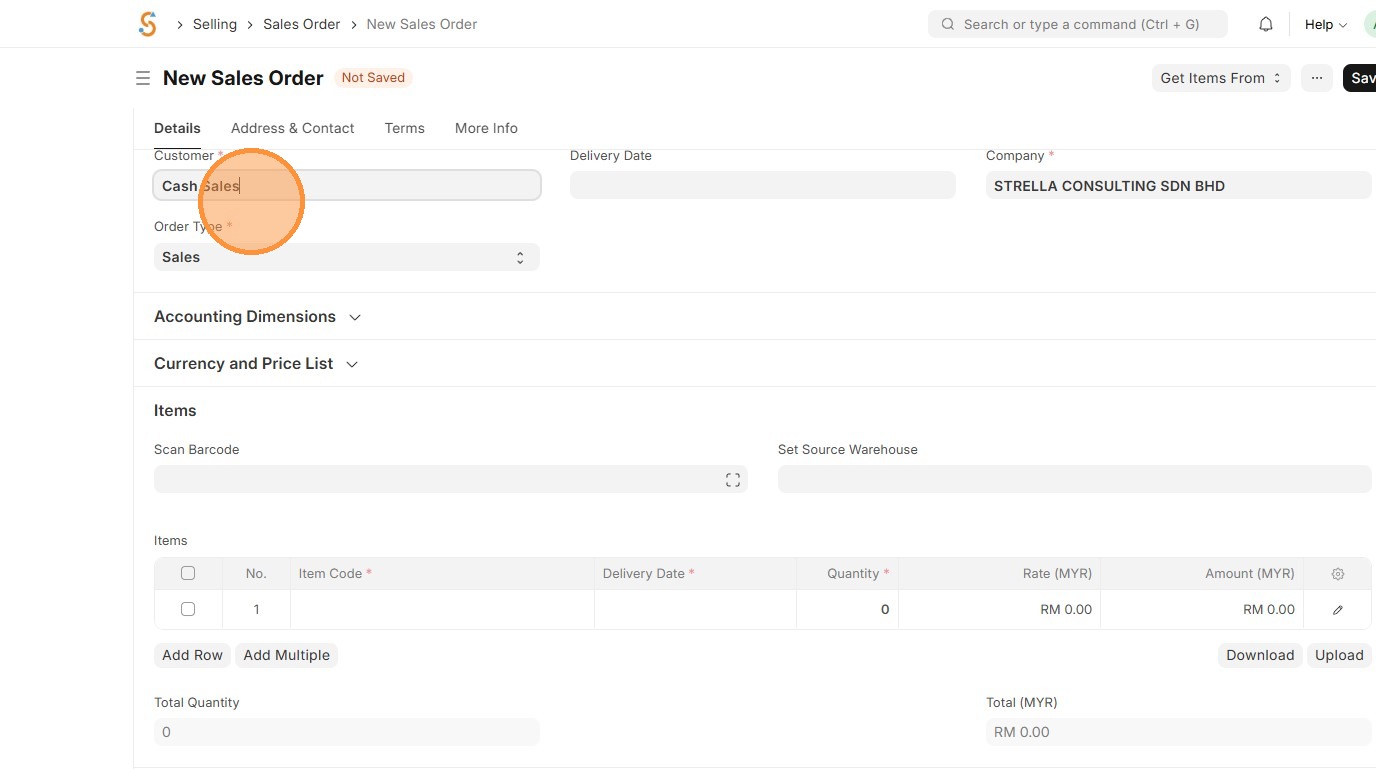
5. Verify that "Tax Category" matches the "Tax Category" in Customer Master Data and "Sales Taxes and Charges Template" matches "Tax Rule".
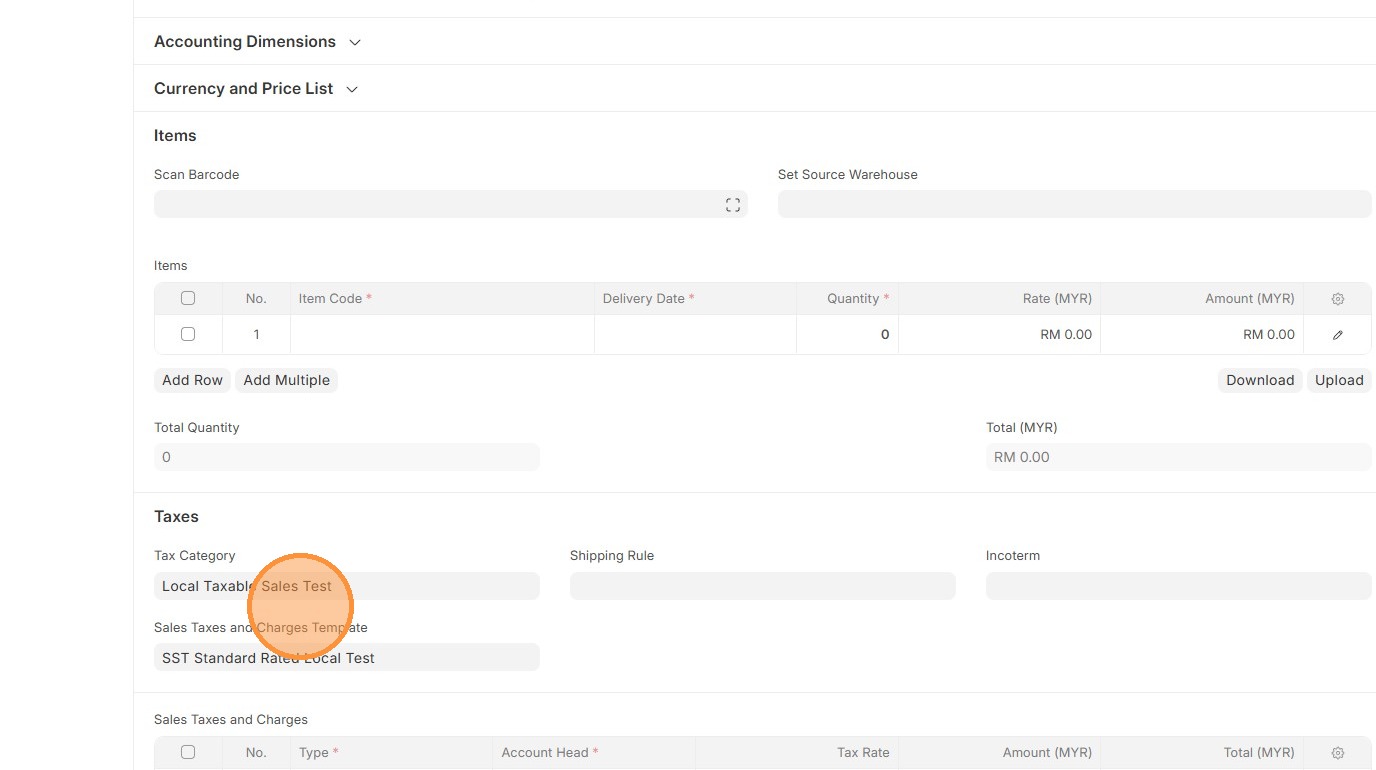
6. Select "Item Code"
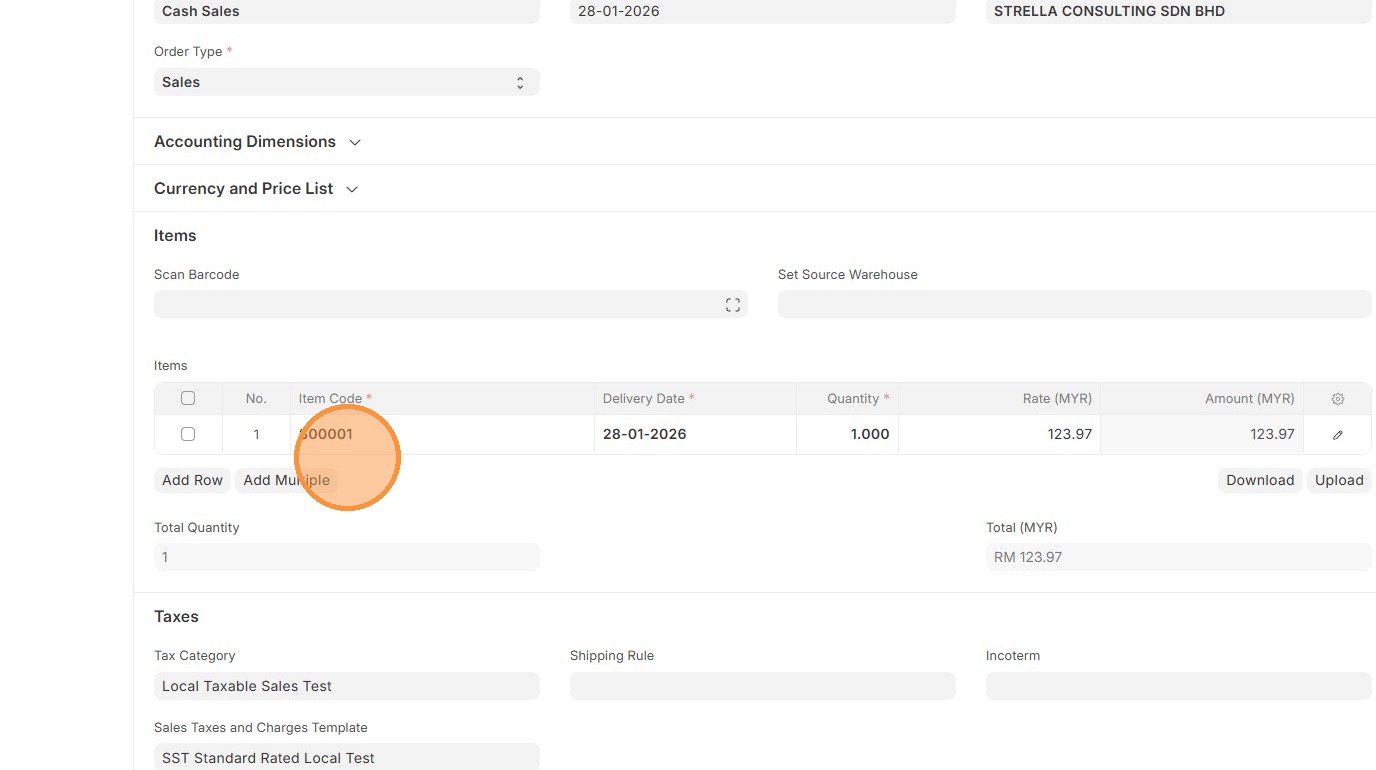
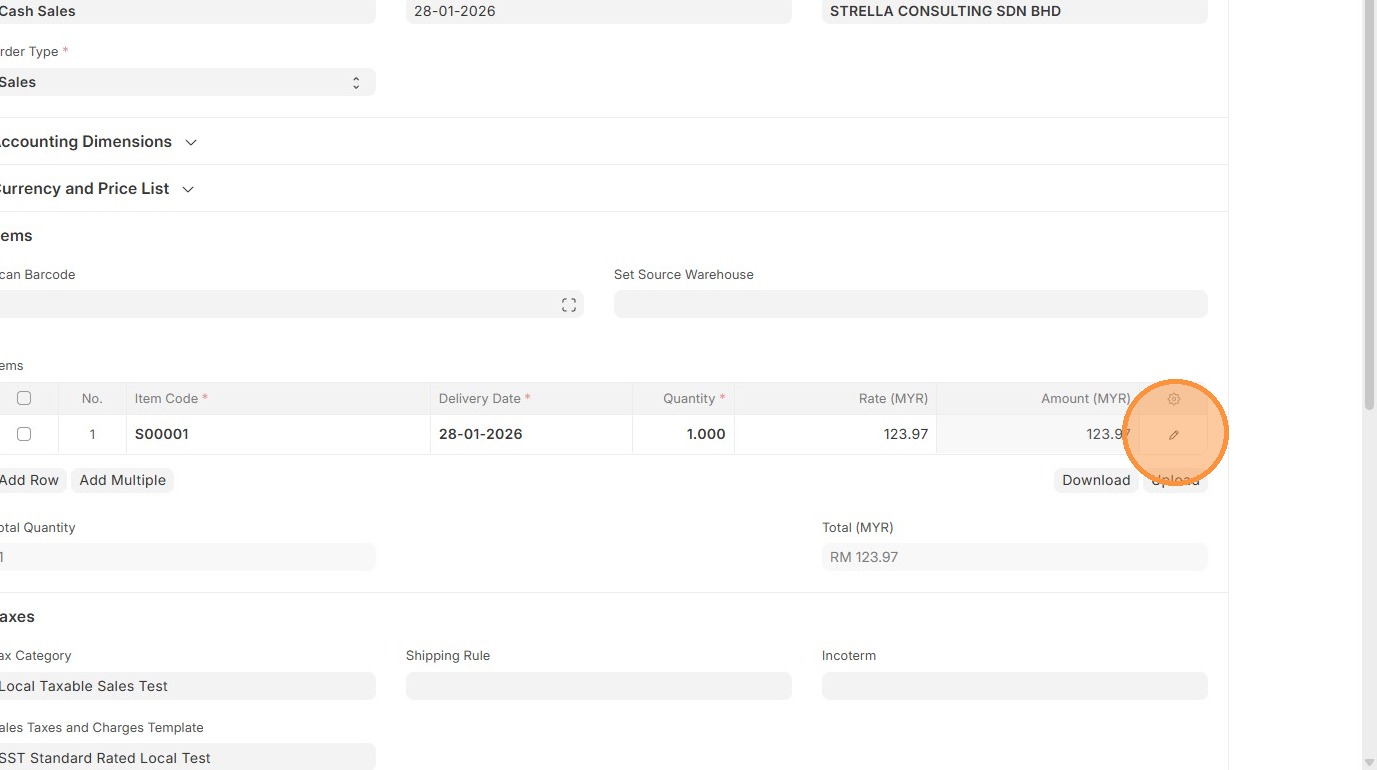
7. Click "Edit".
8. Verify "Item Tax Template"
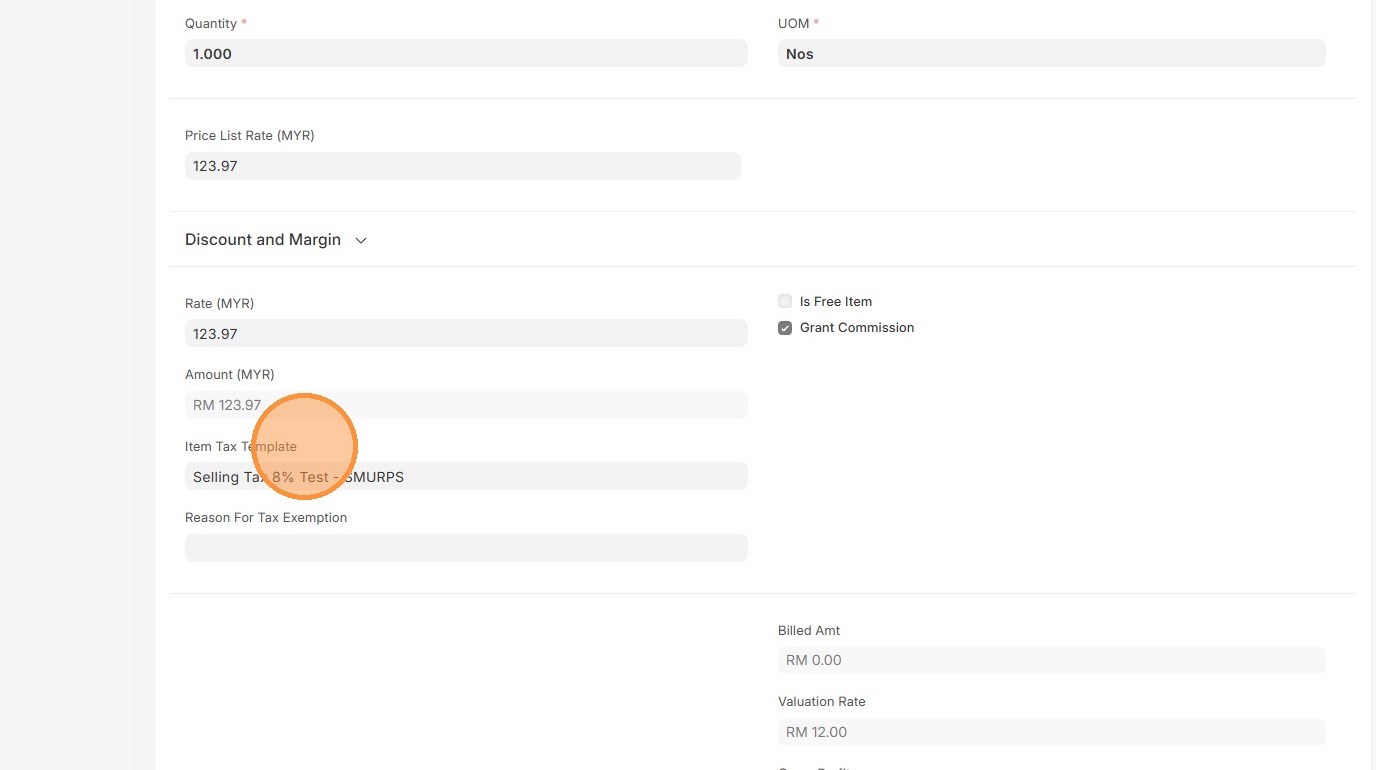
9. Click here to close pop up.
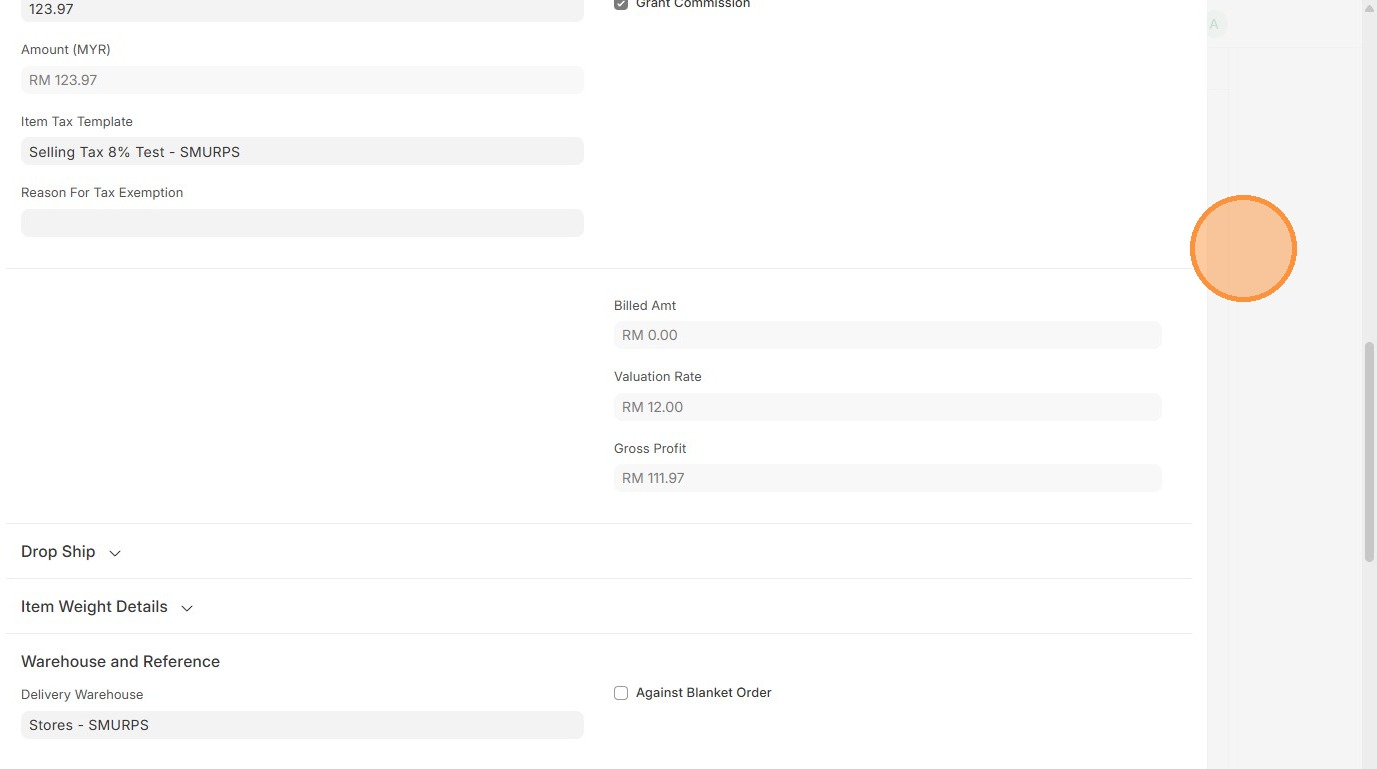
10. Verify "Sales Taxes and Charges" table matches the newly created/selected one.
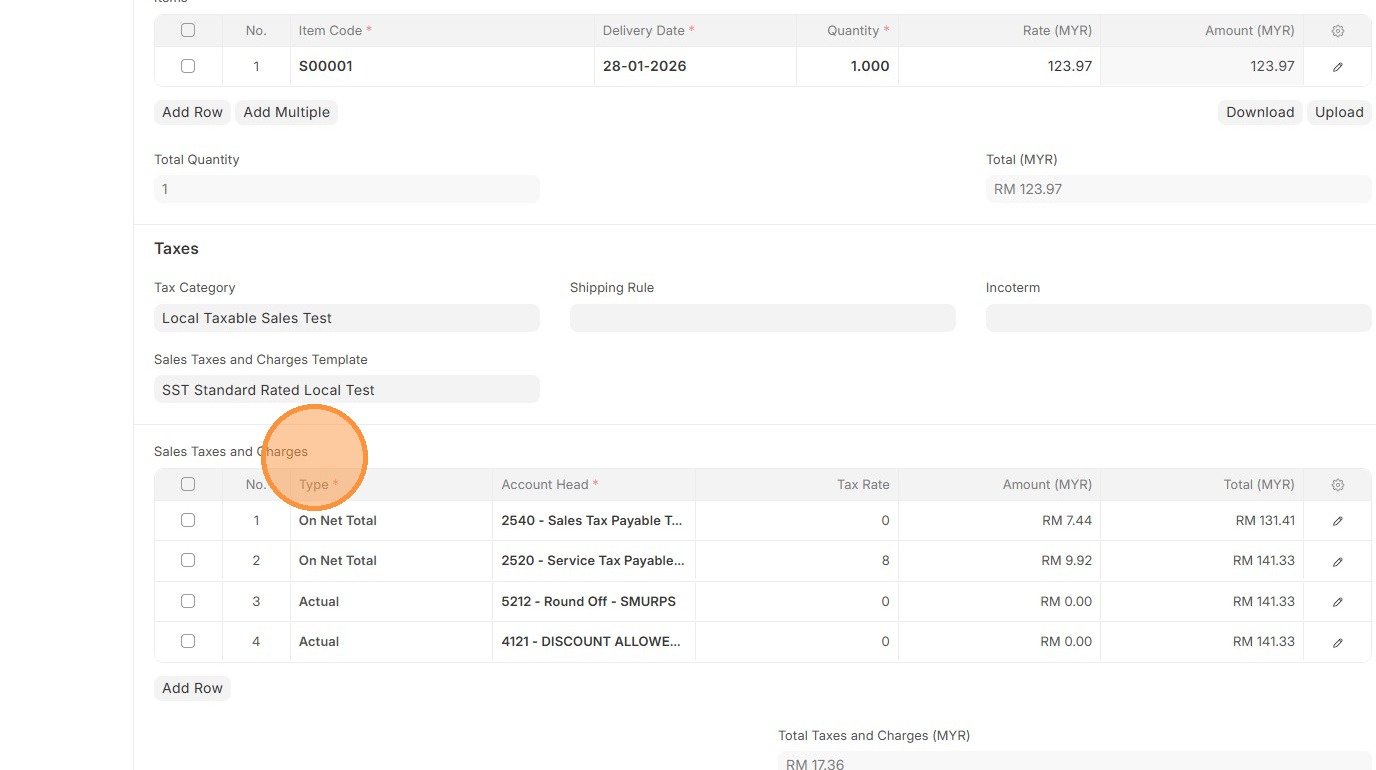
11. Verify the "Amount (MYR)" calculation.
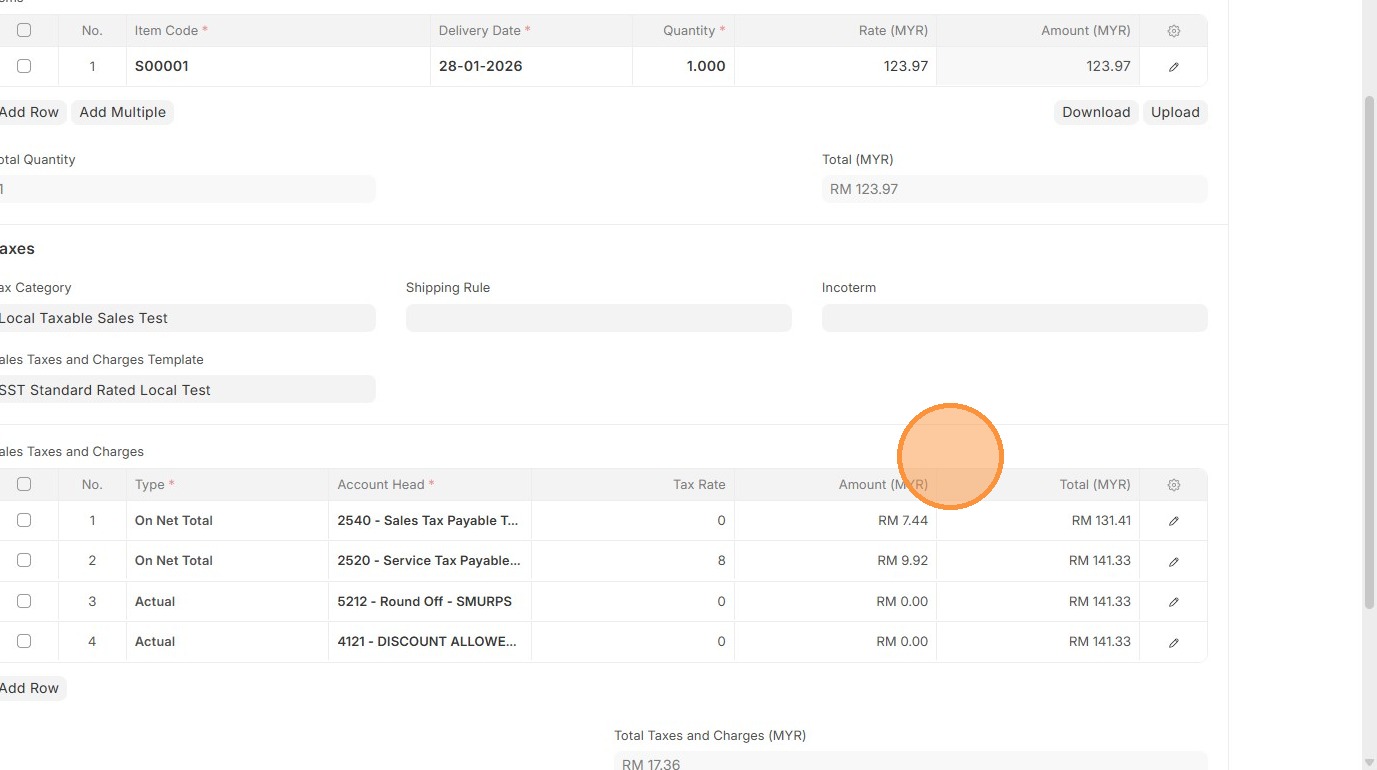
12. Verify "Totals Taxes and Charges (MYR)" and "Grand Total"
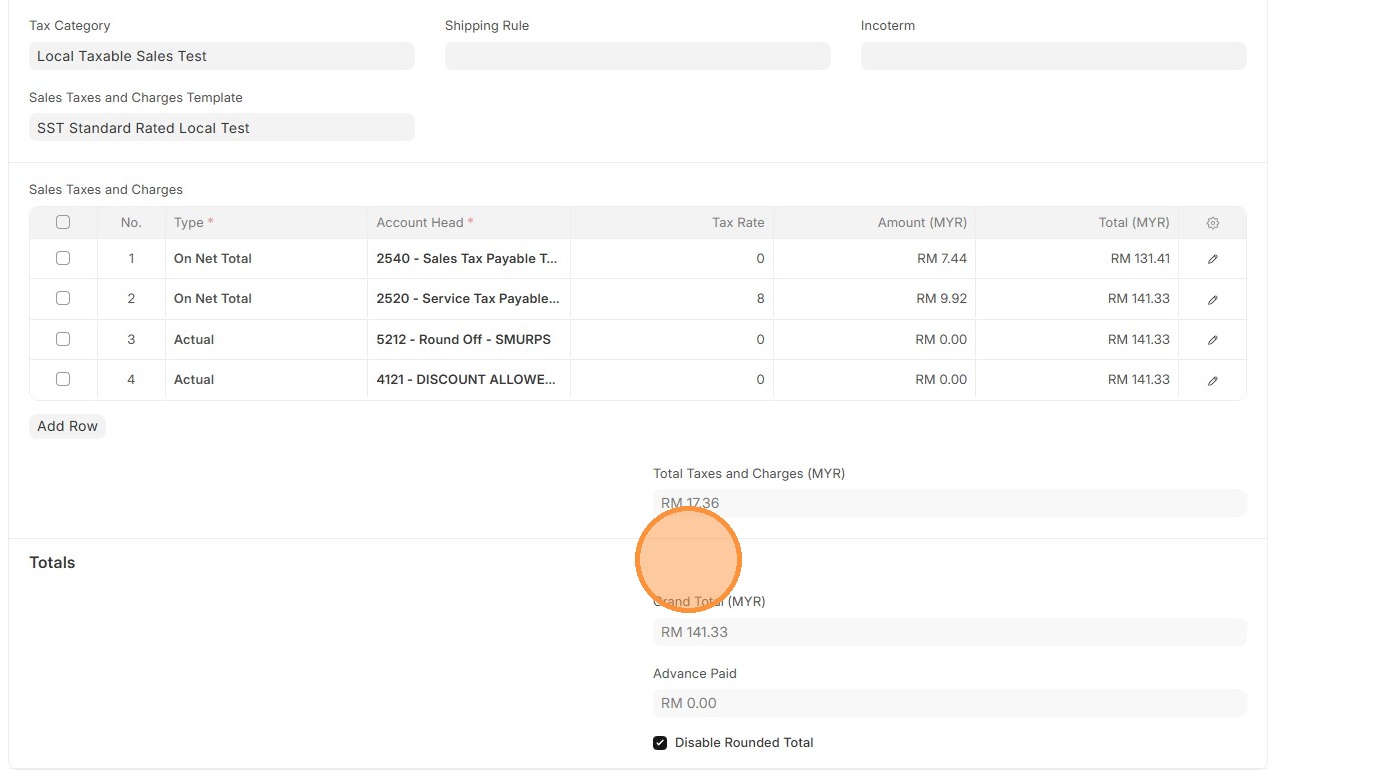
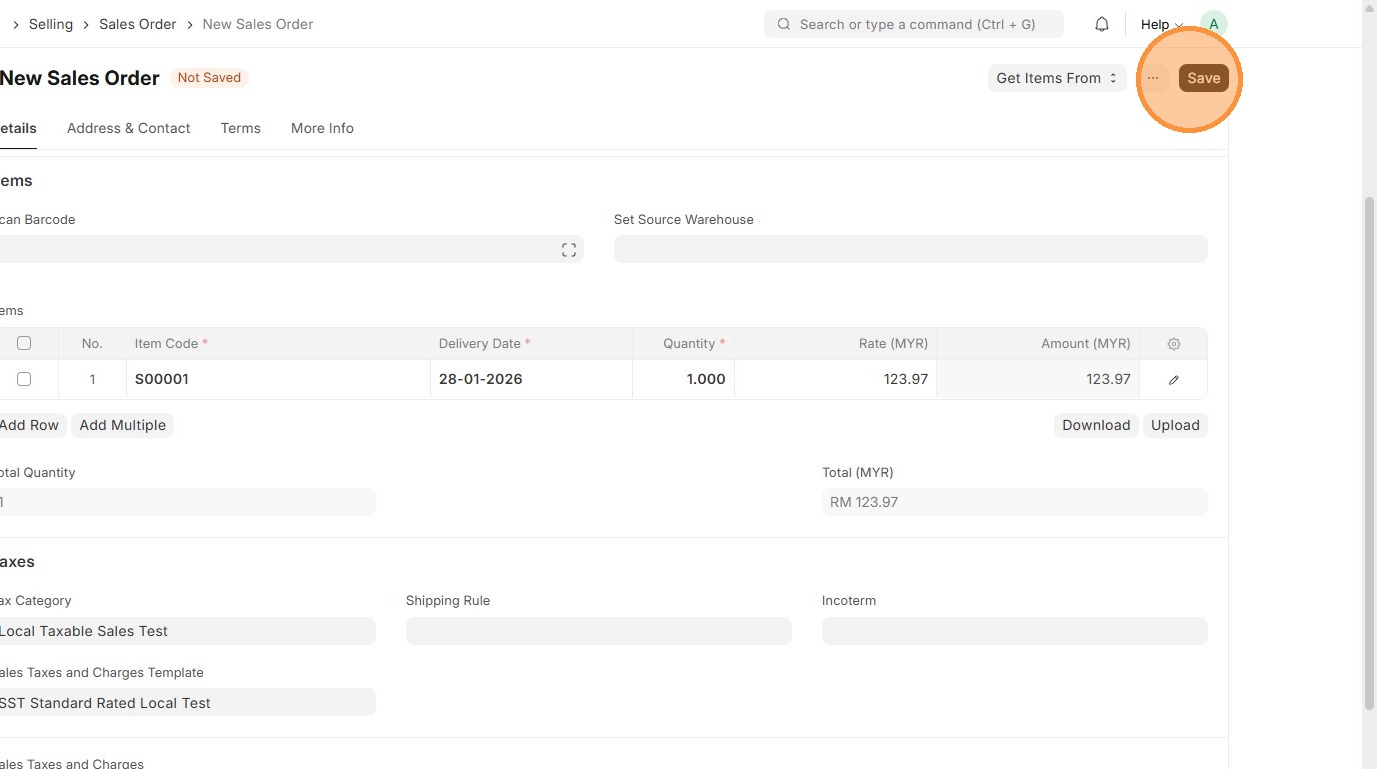
13. Click "Save"
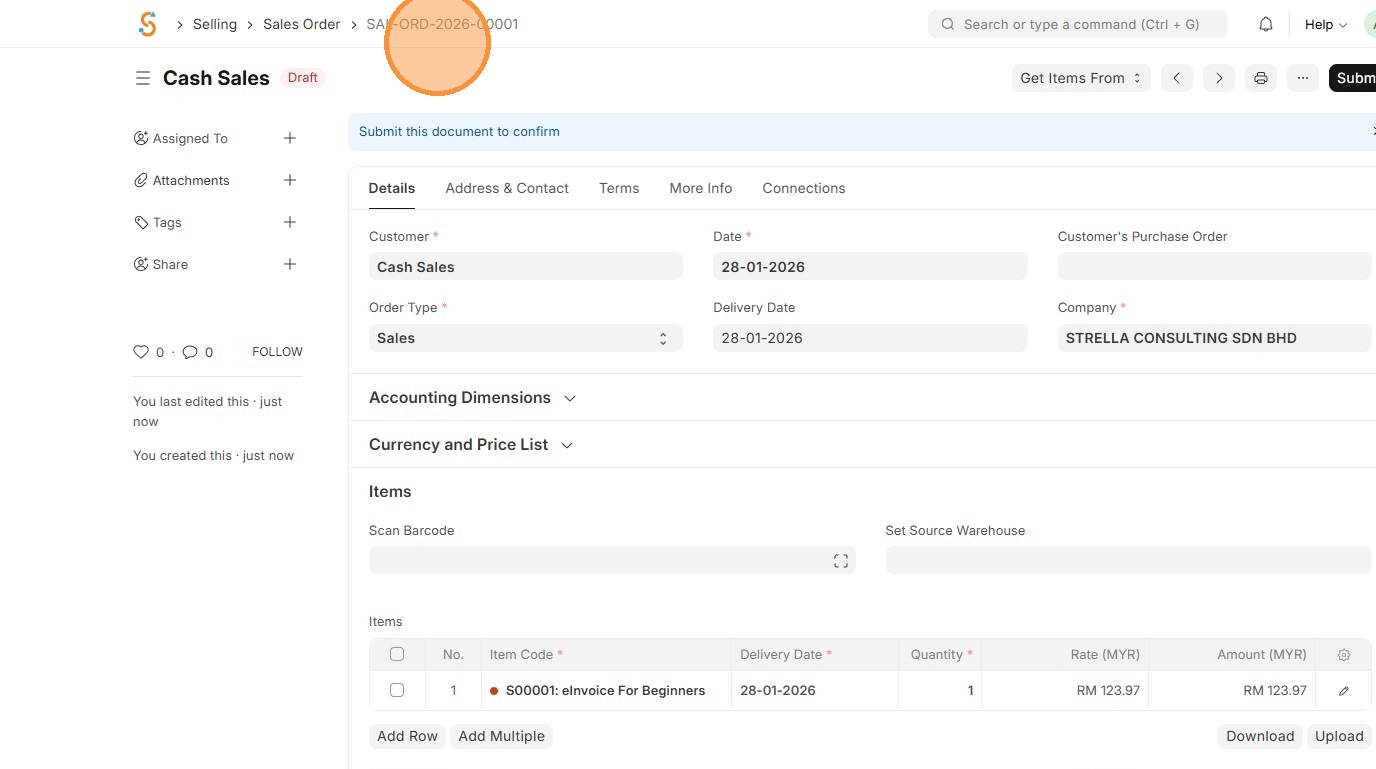
14. Verify that Sales Order ID is created.
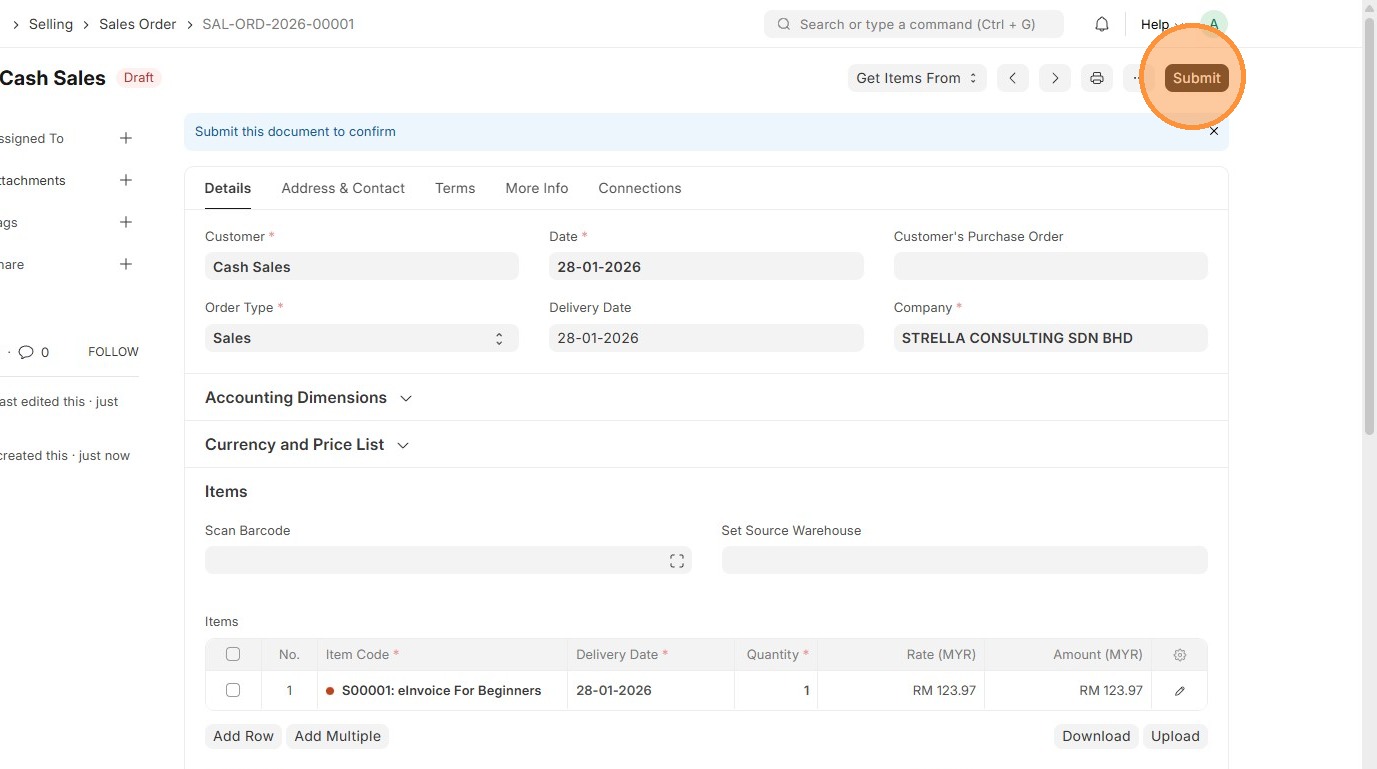
15. Click "Submit"
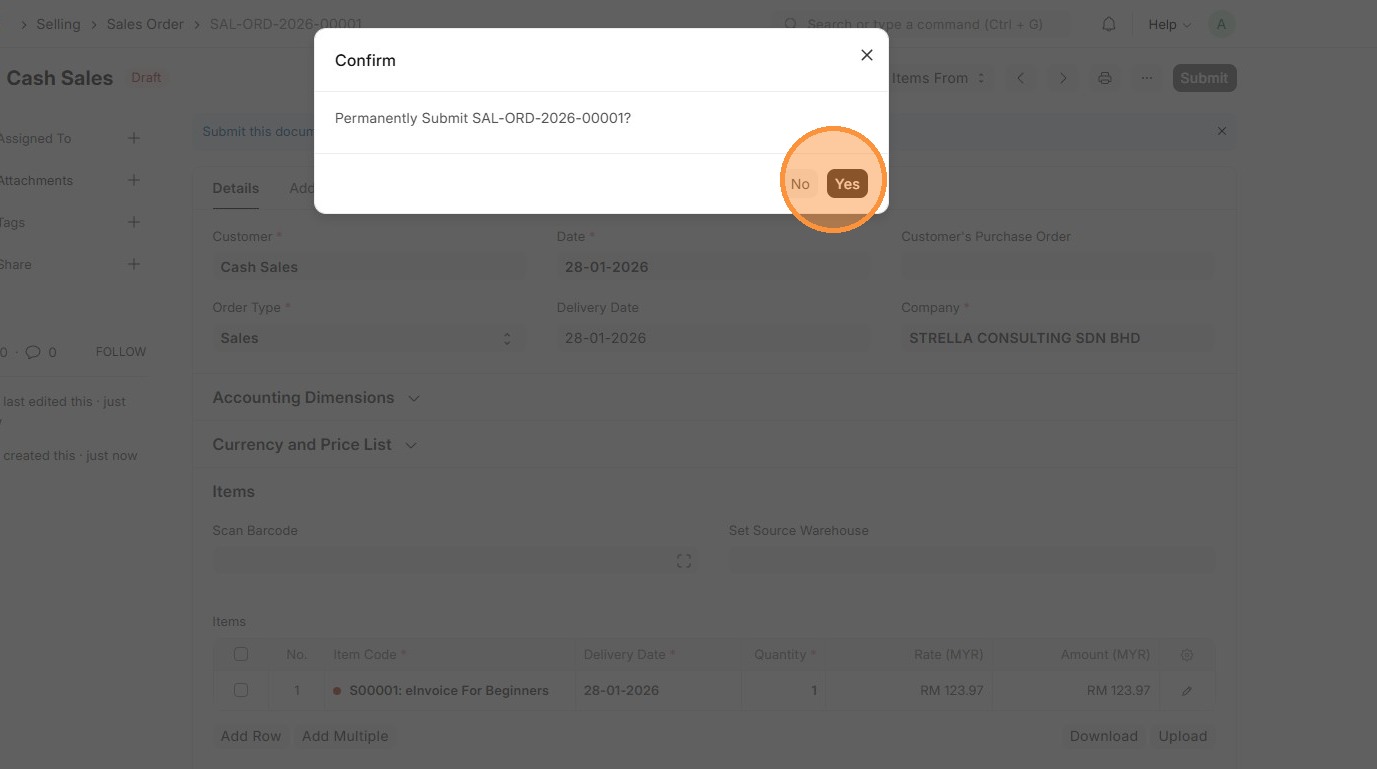
16. Click "Yes"
17. Click "Create"
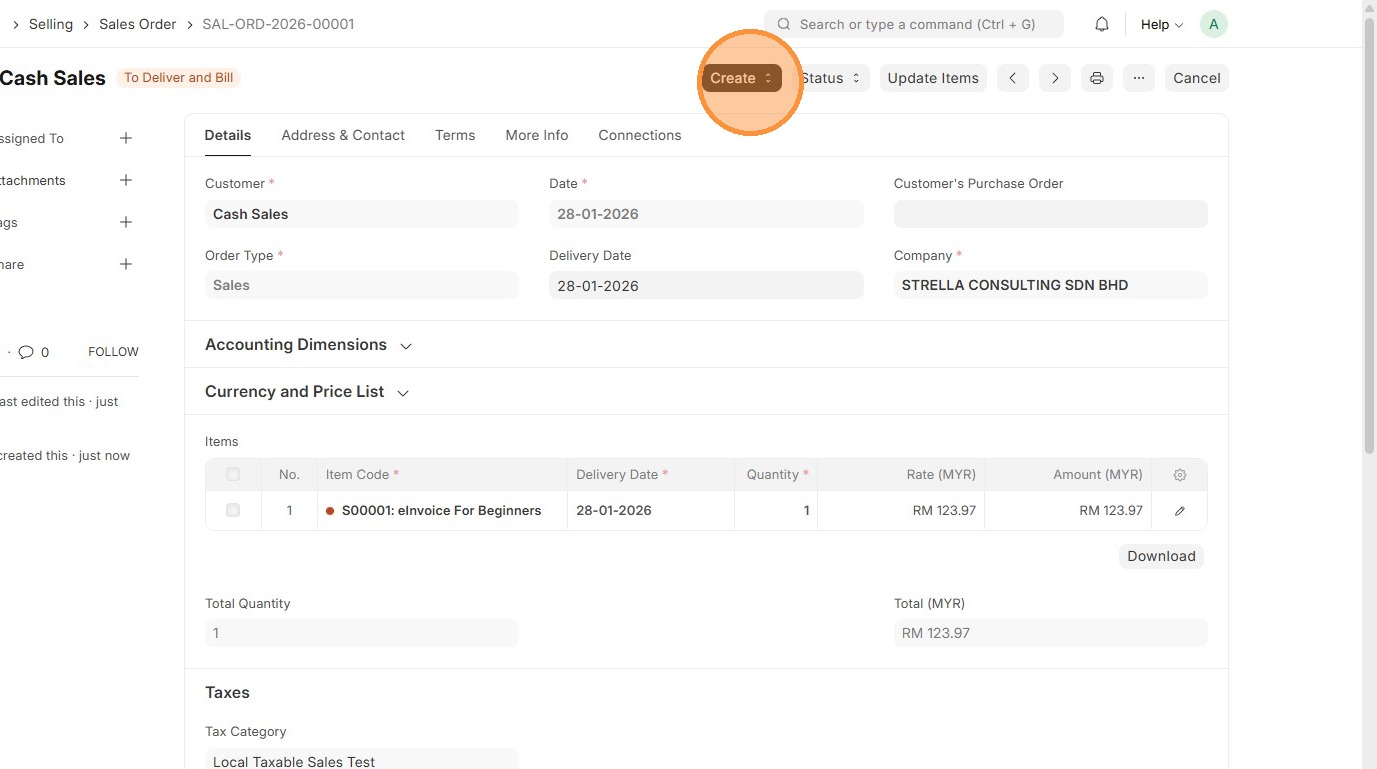
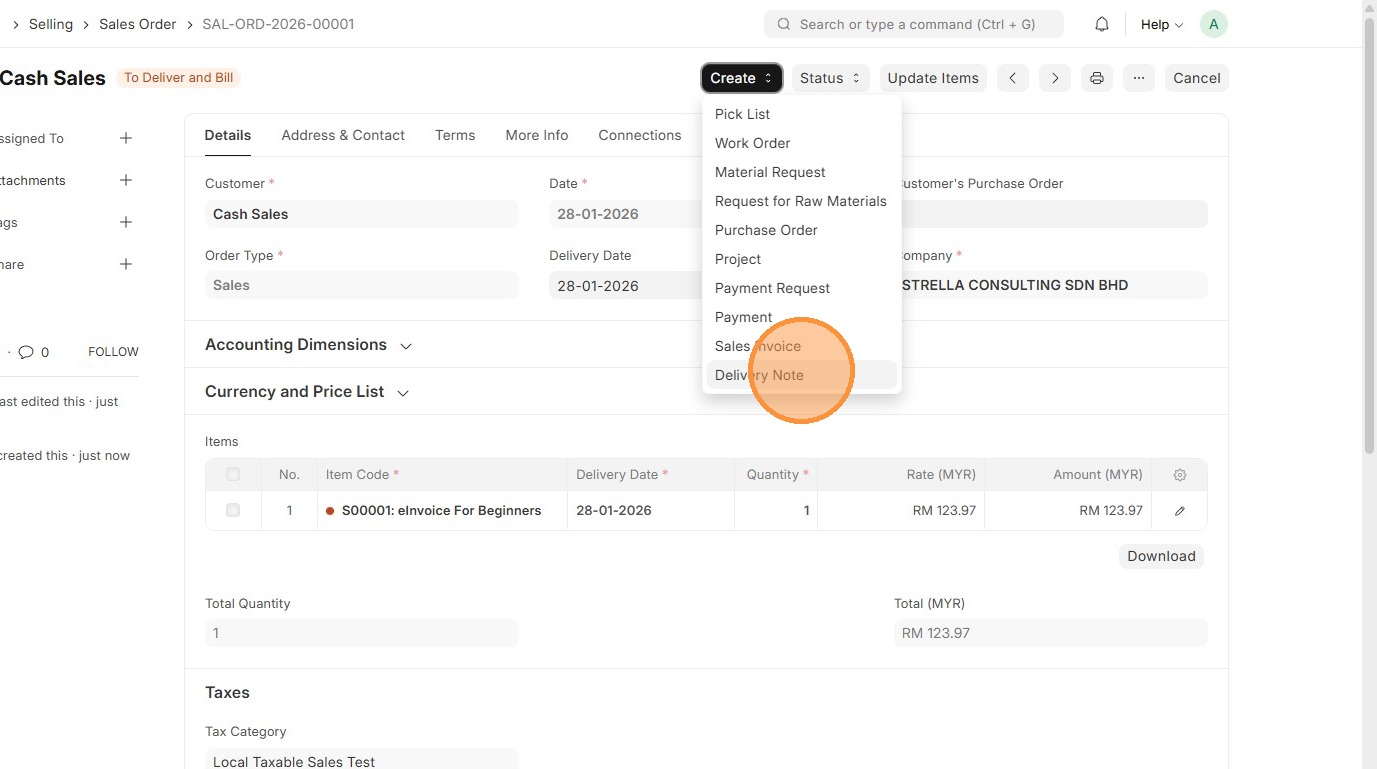
18. Click "Delivery Note"
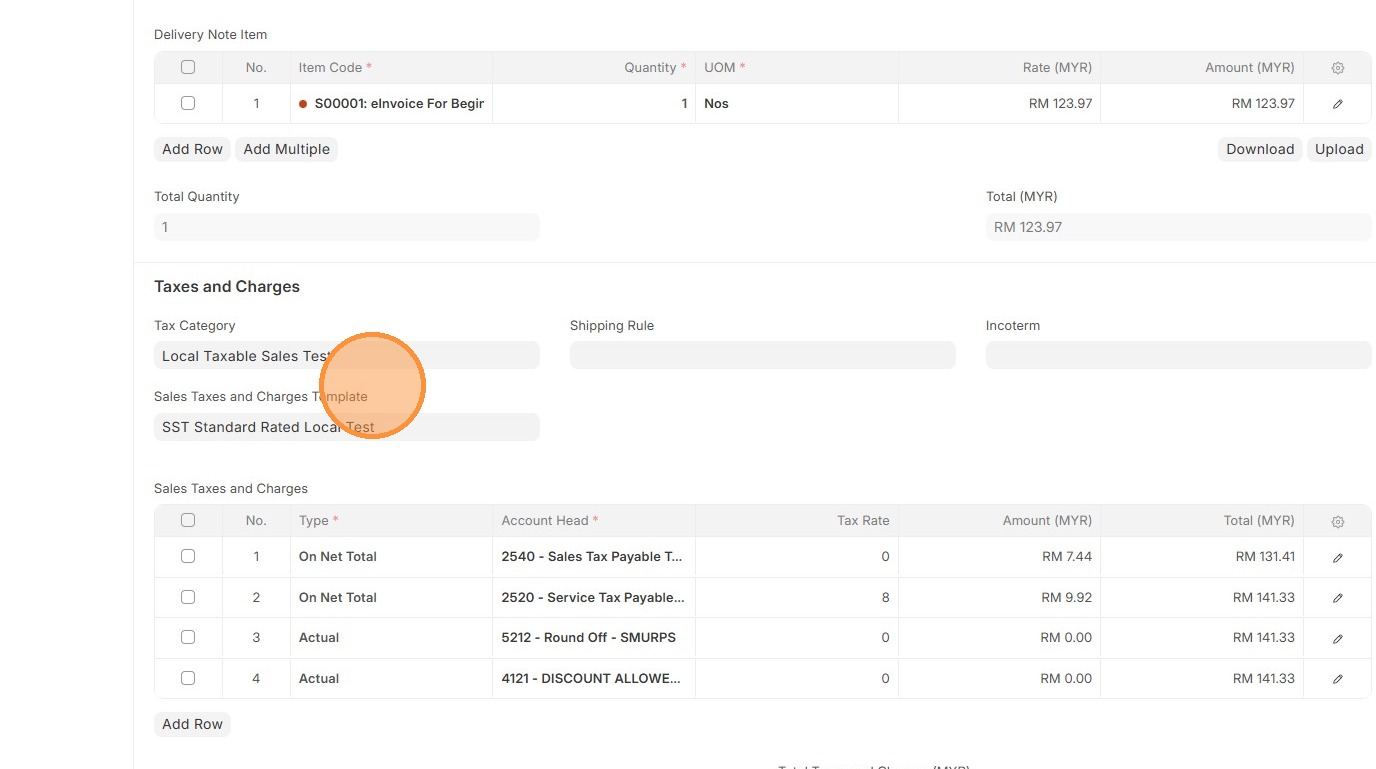
19. Verify that "Customer" and "Sales Taxes and Charges Template" matches the Sales Order.
20. Click "Edit".
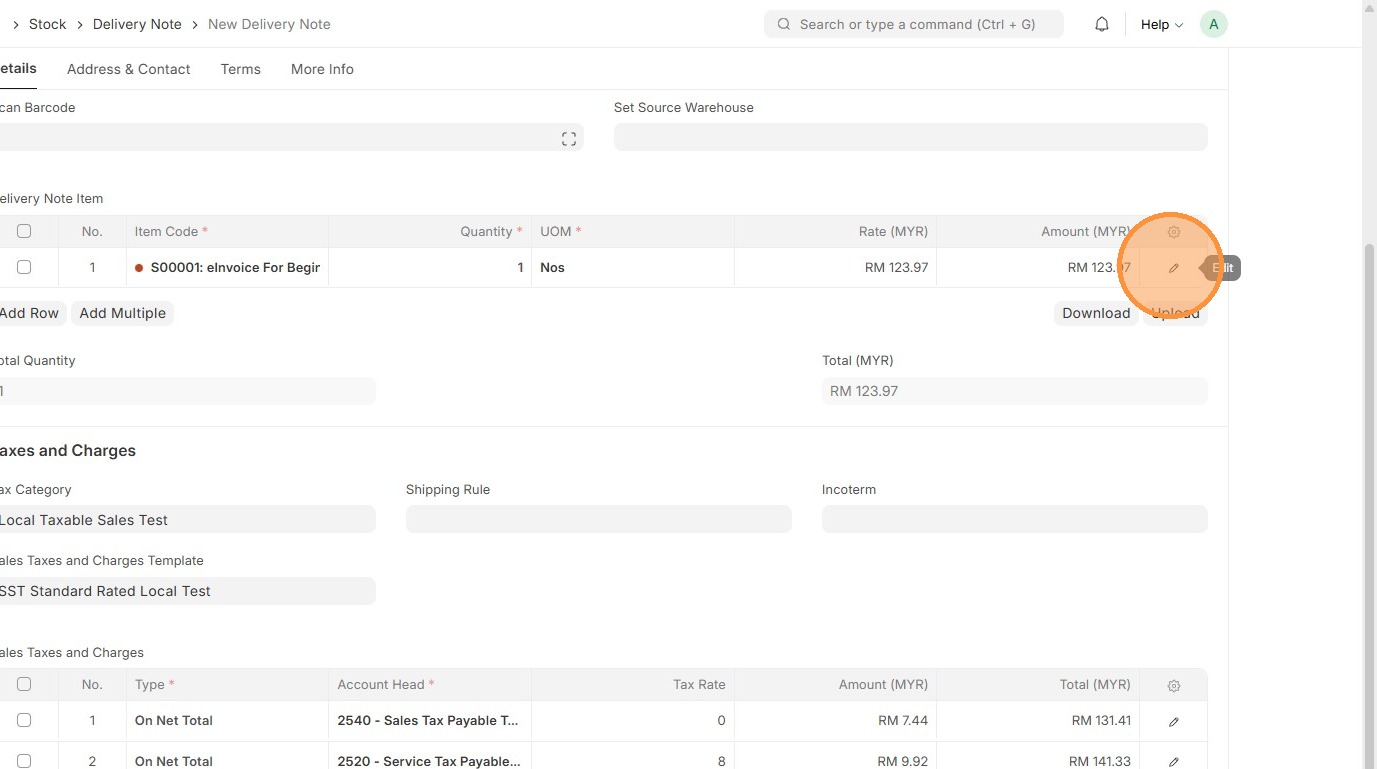
21. Verify "Item Tax Template" matches the one in Sales Order.
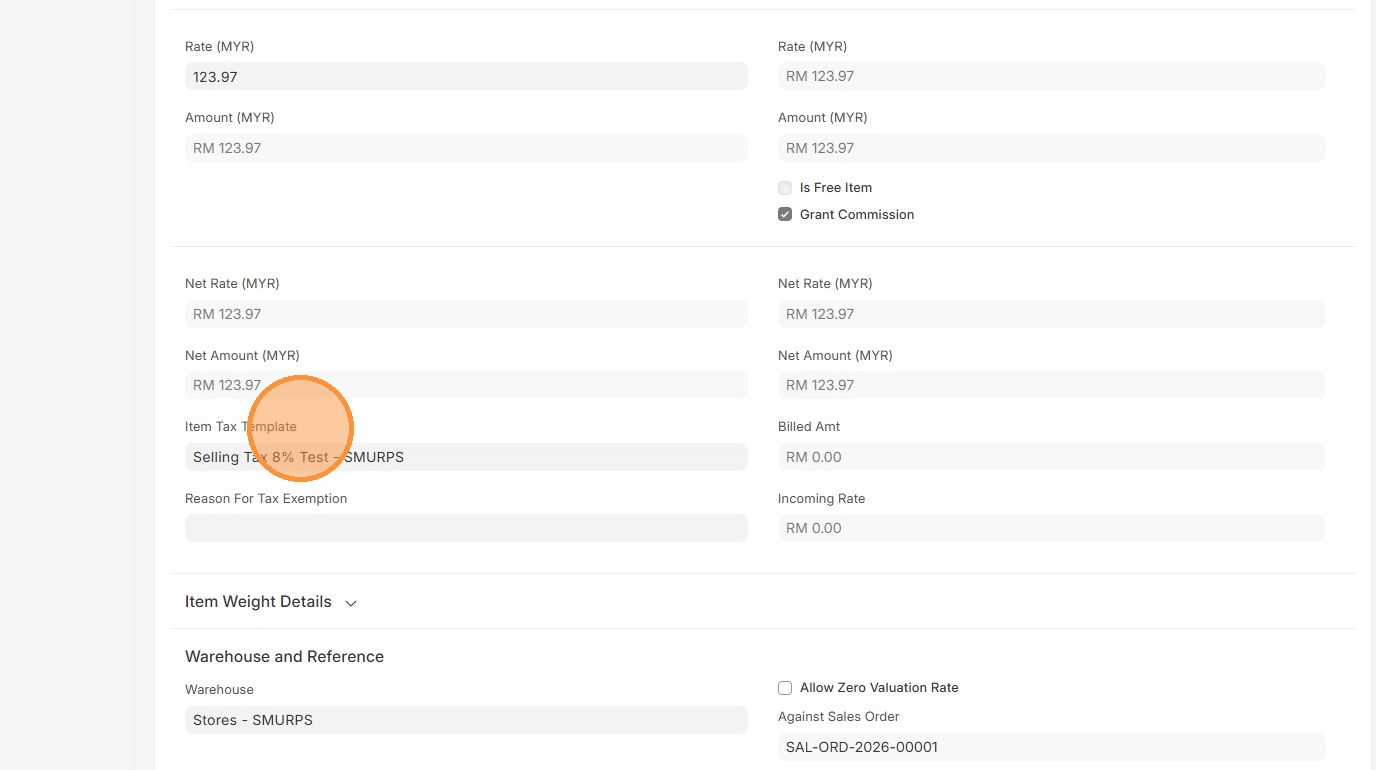
22. Click here to close pop up.
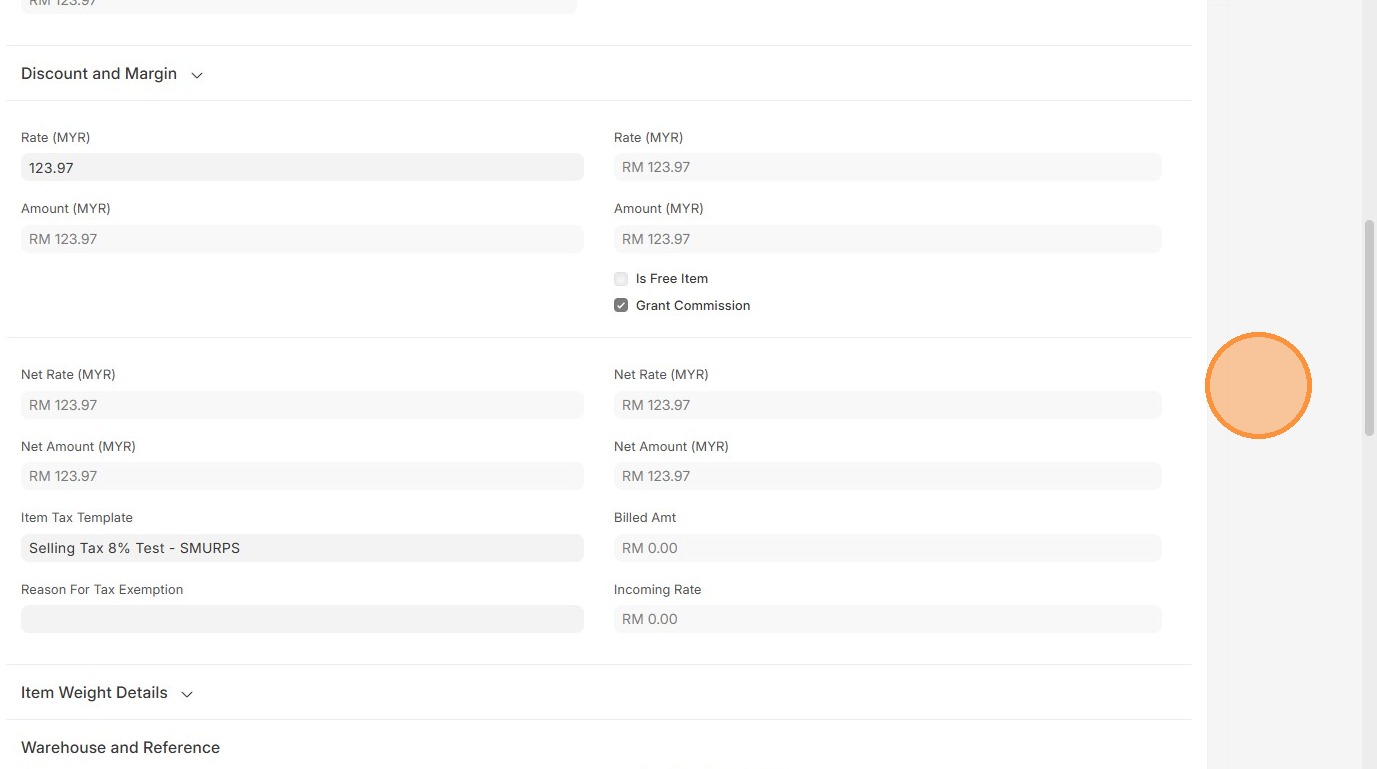
23. Verify "Sales Taxes and Charges" table matches the Sales Order.
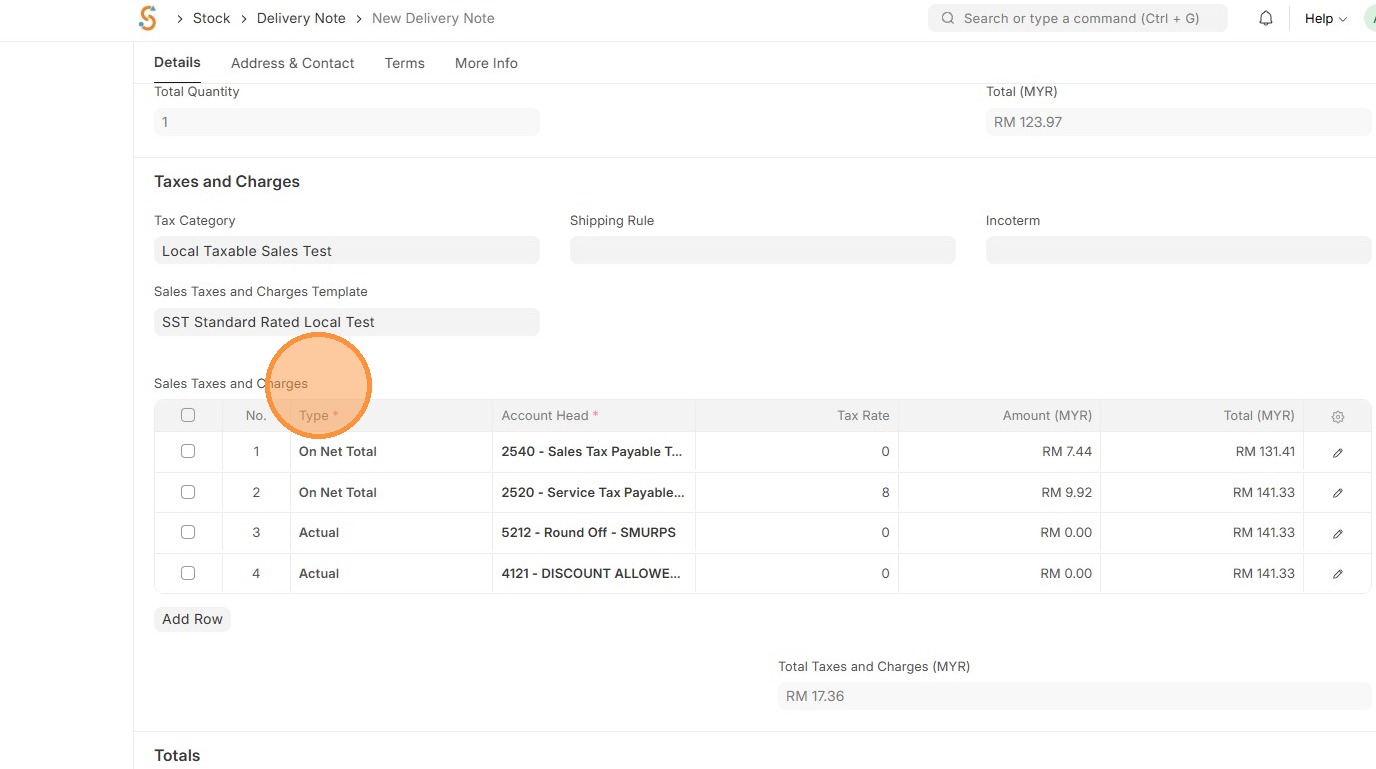
24. Verify "Amount (MYR)" table matches the Sales Order.
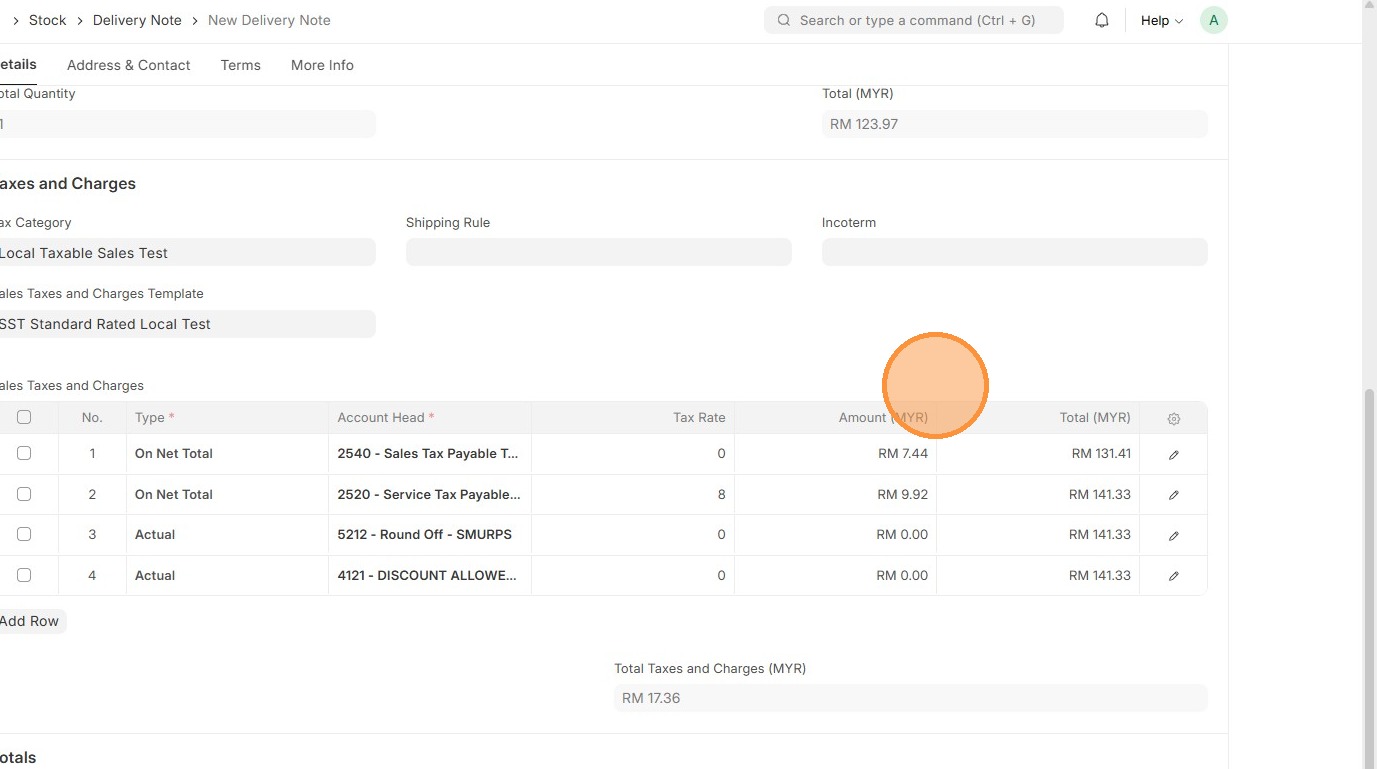
25. Verify that "Total Taxes and Charges (MYR)" and "Grand Total" in Delivery Order matches the Sales Order.
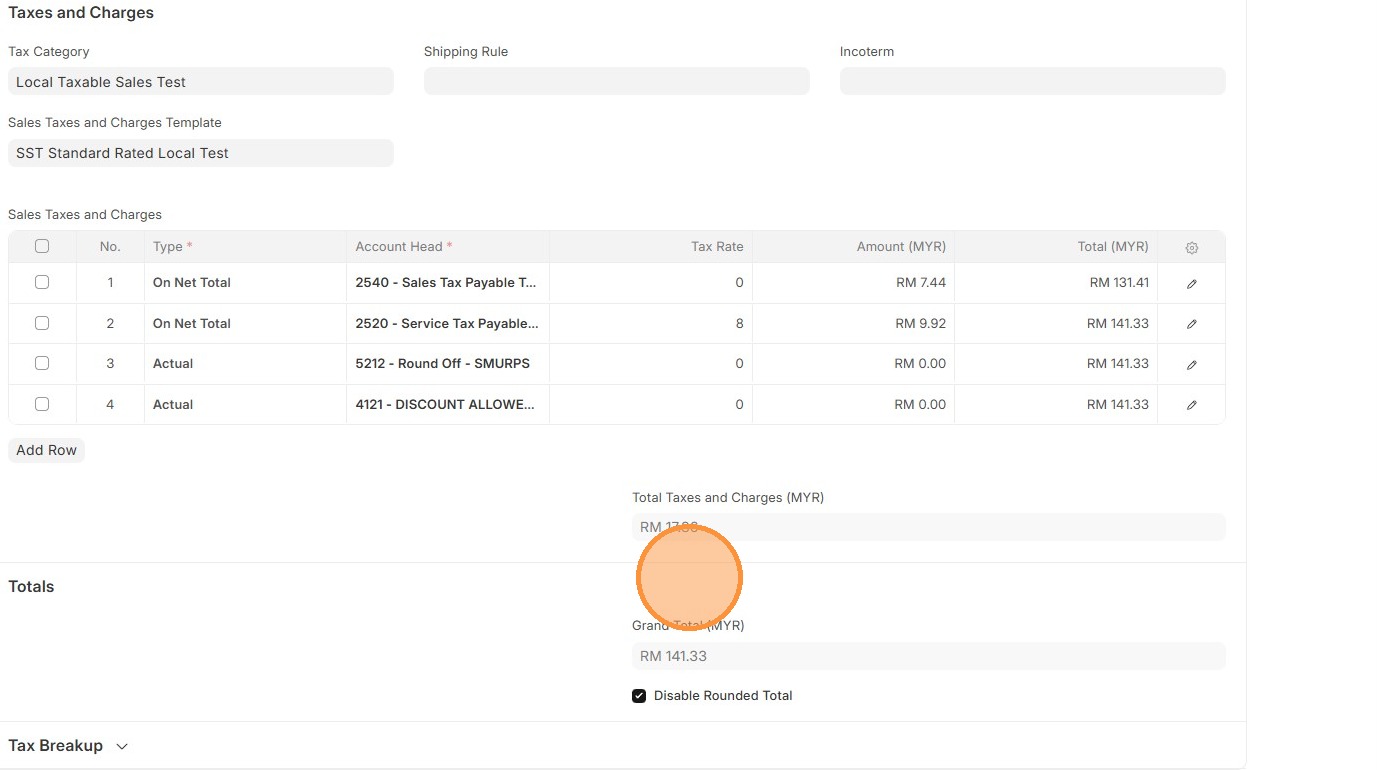
26. Click "Save"
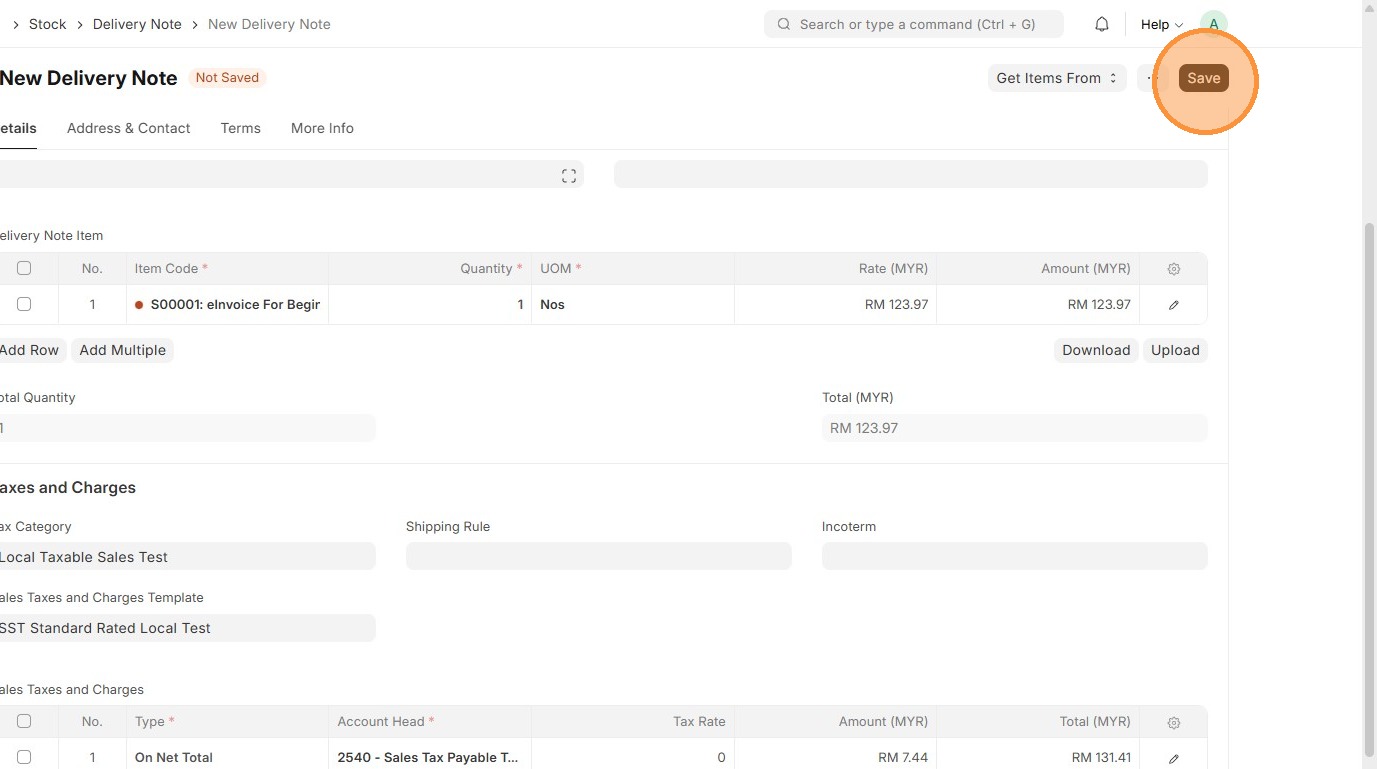
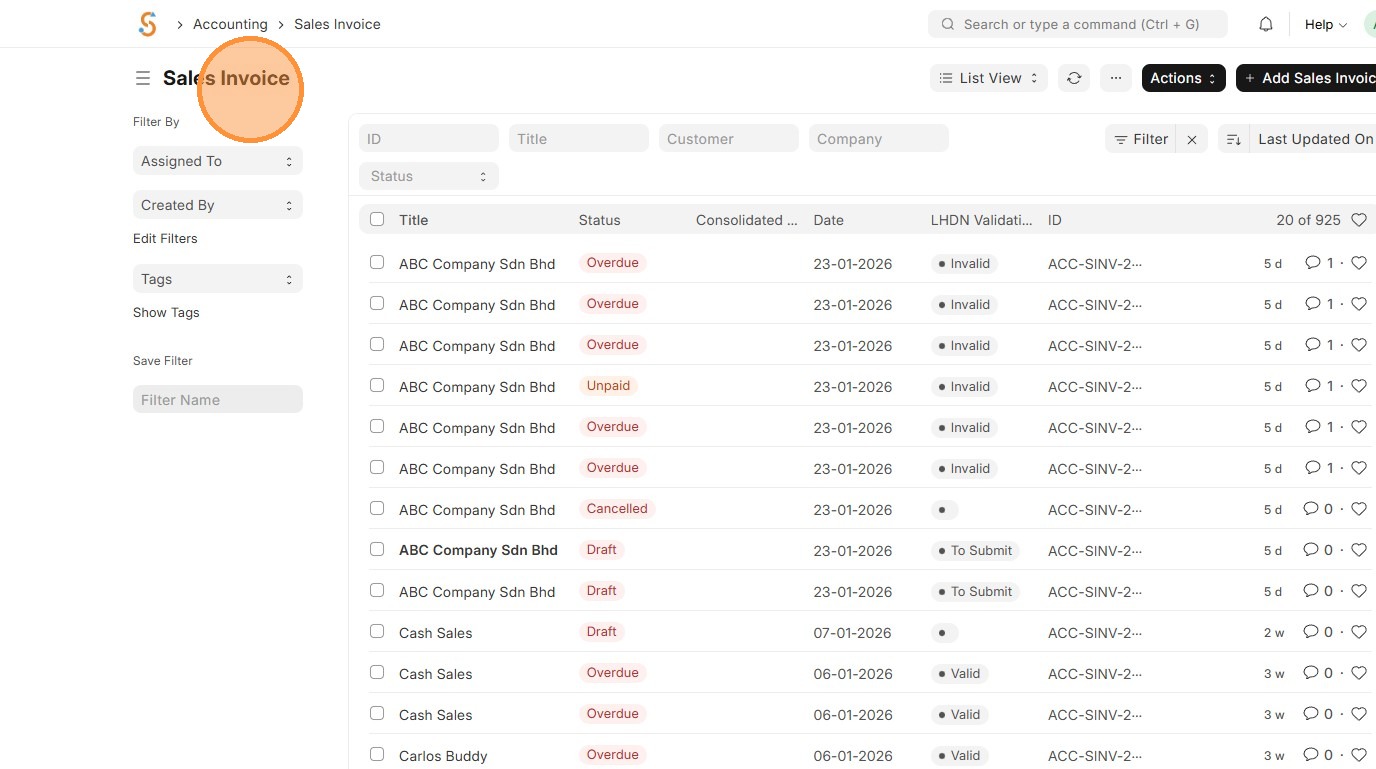
27. Go to "Sales Invoice"
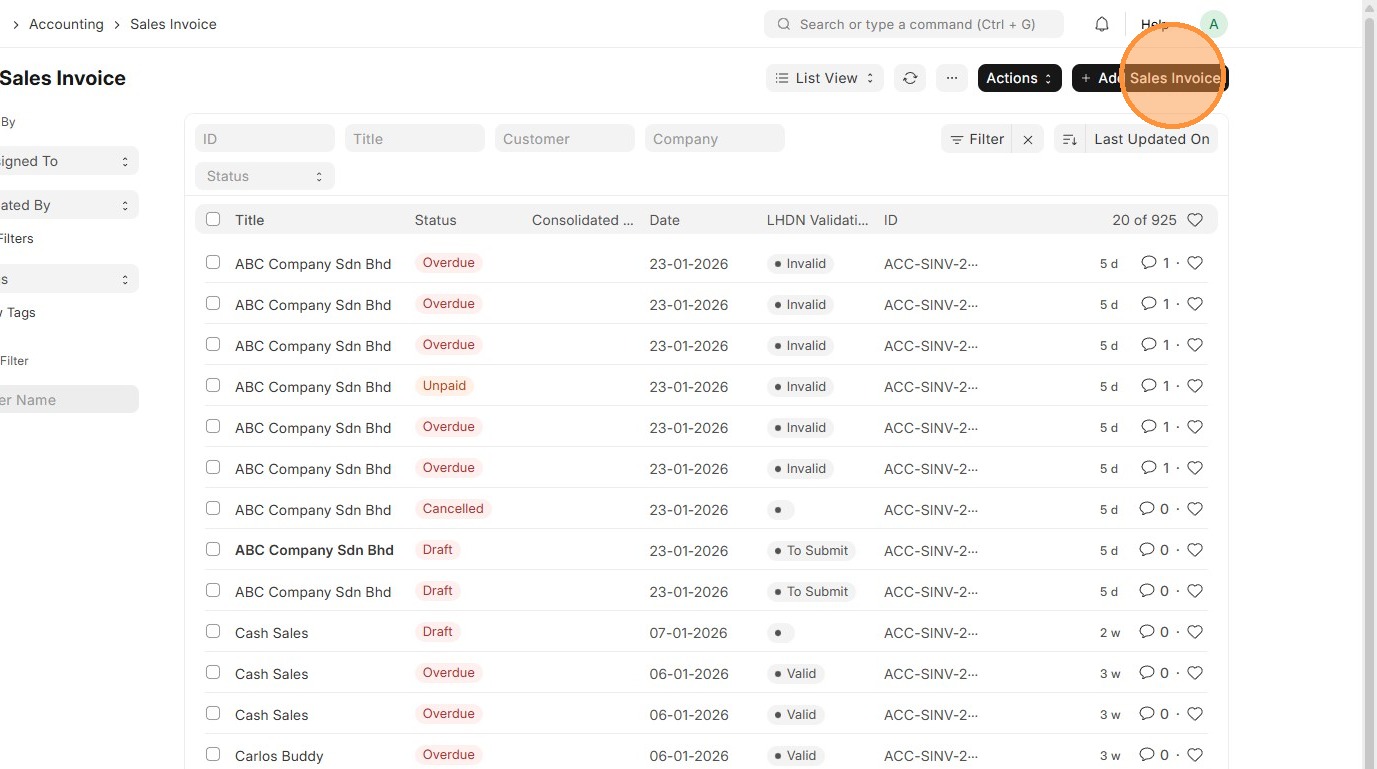
28. Click "Add Sales Invoice"
29. Select "Customer".
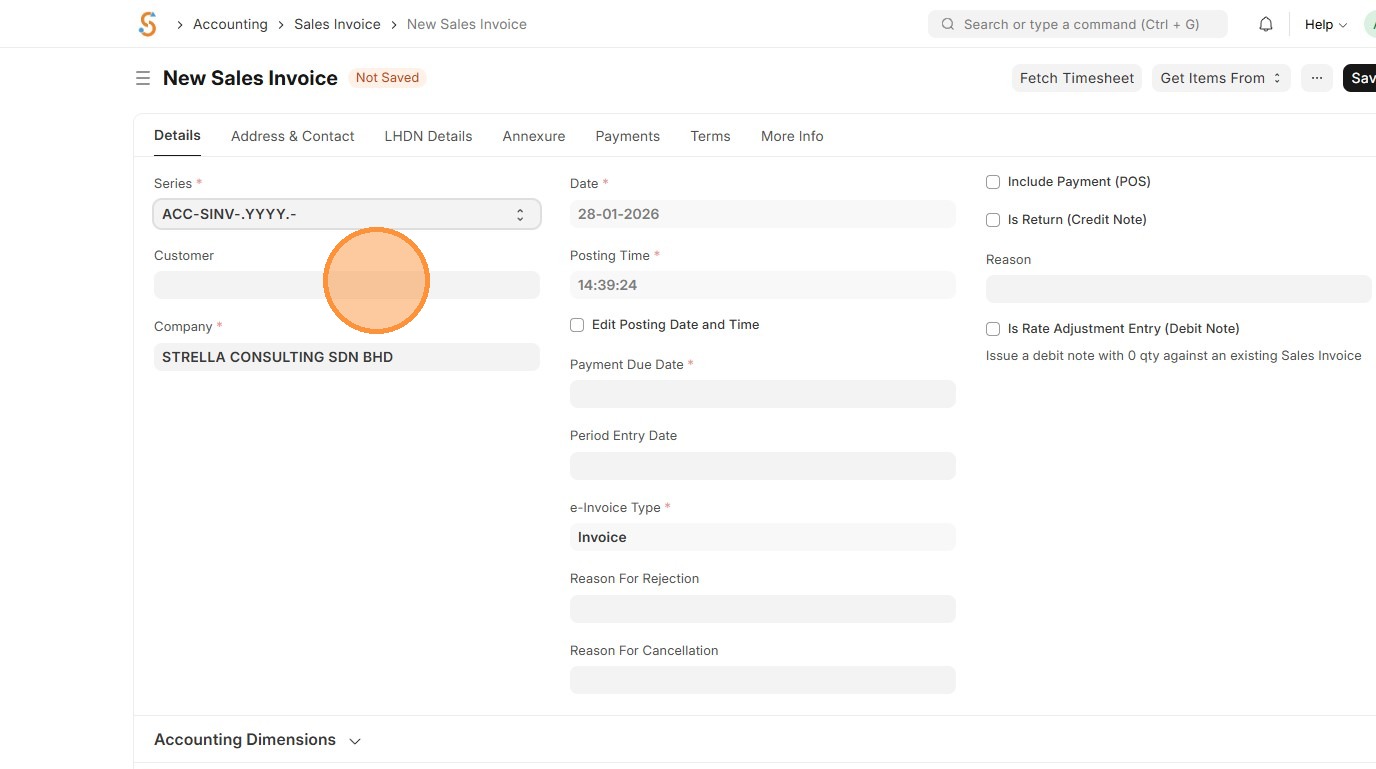
30. Click "Get Items From"
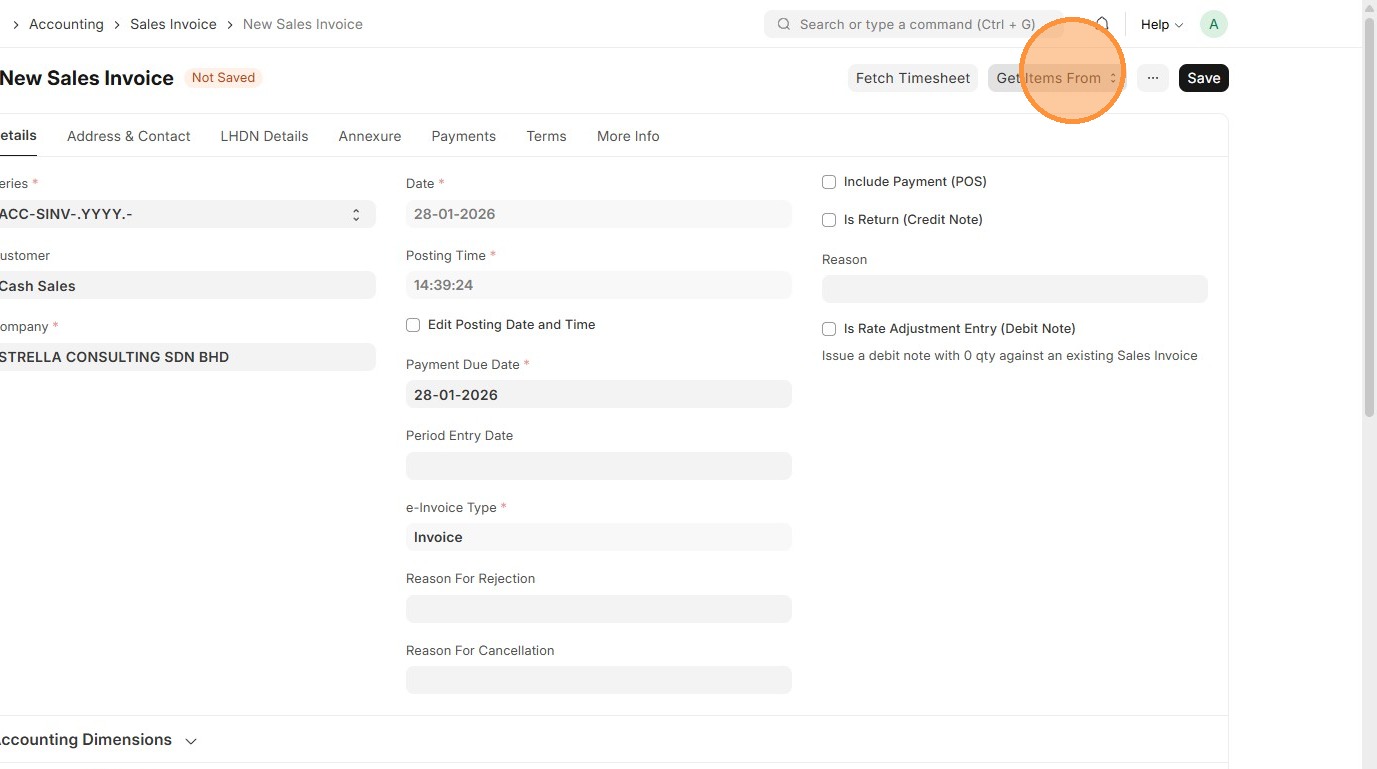
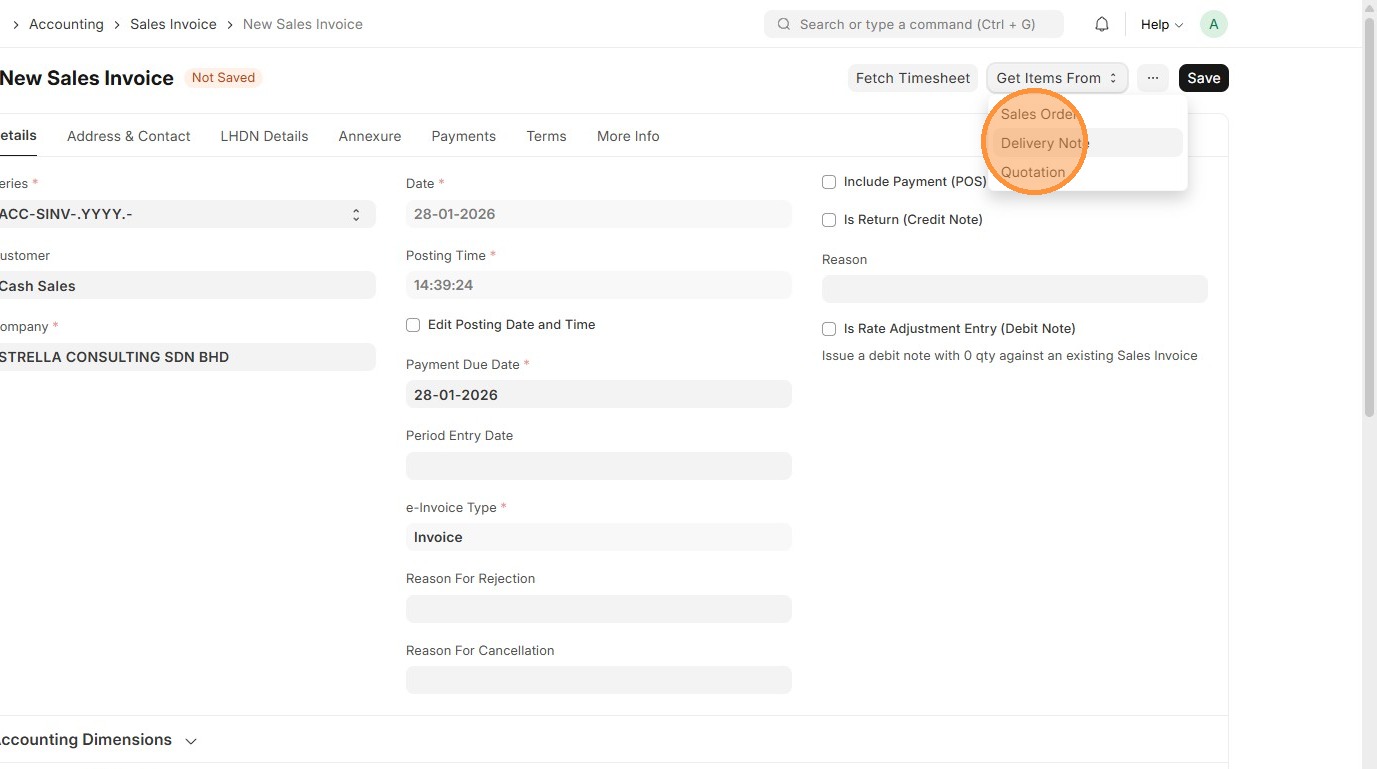
31. Click "Delivery Note"
32. Click on checkbox.
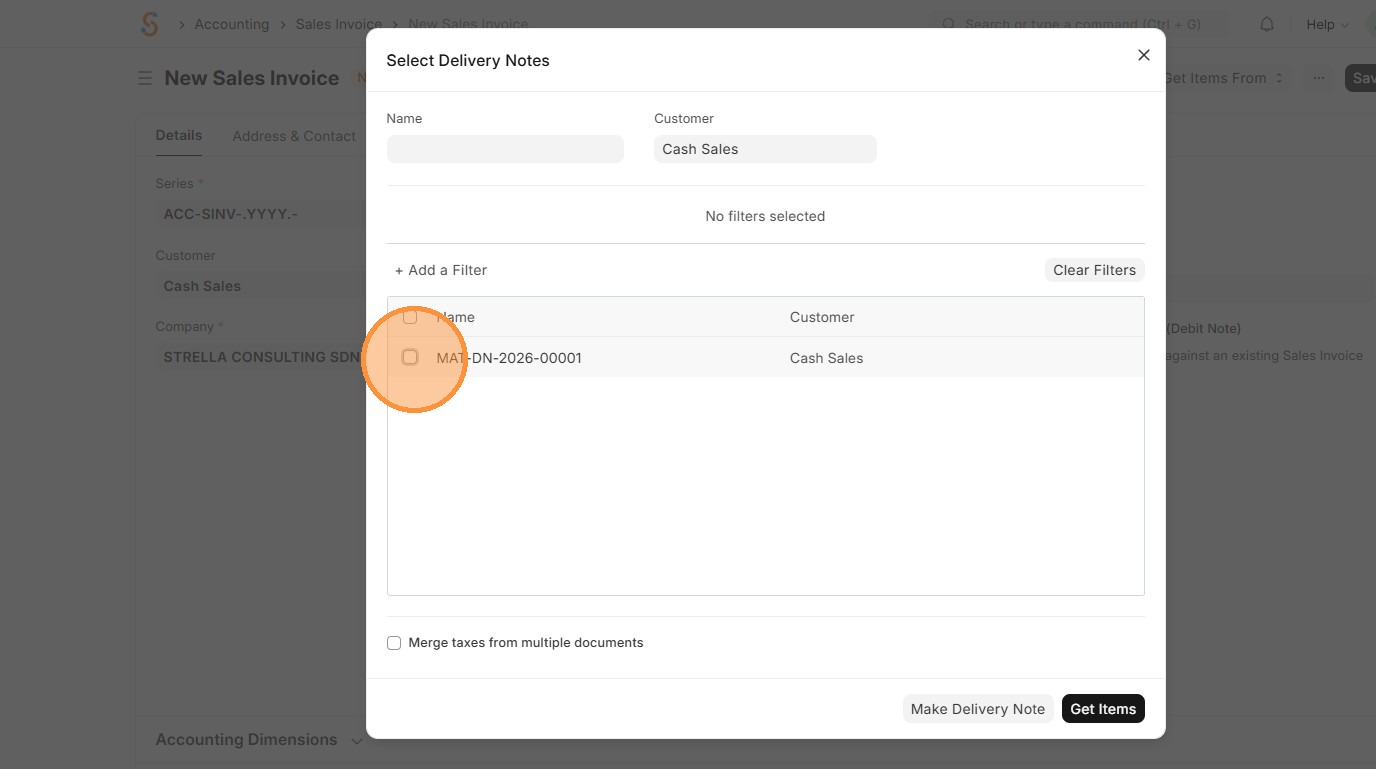
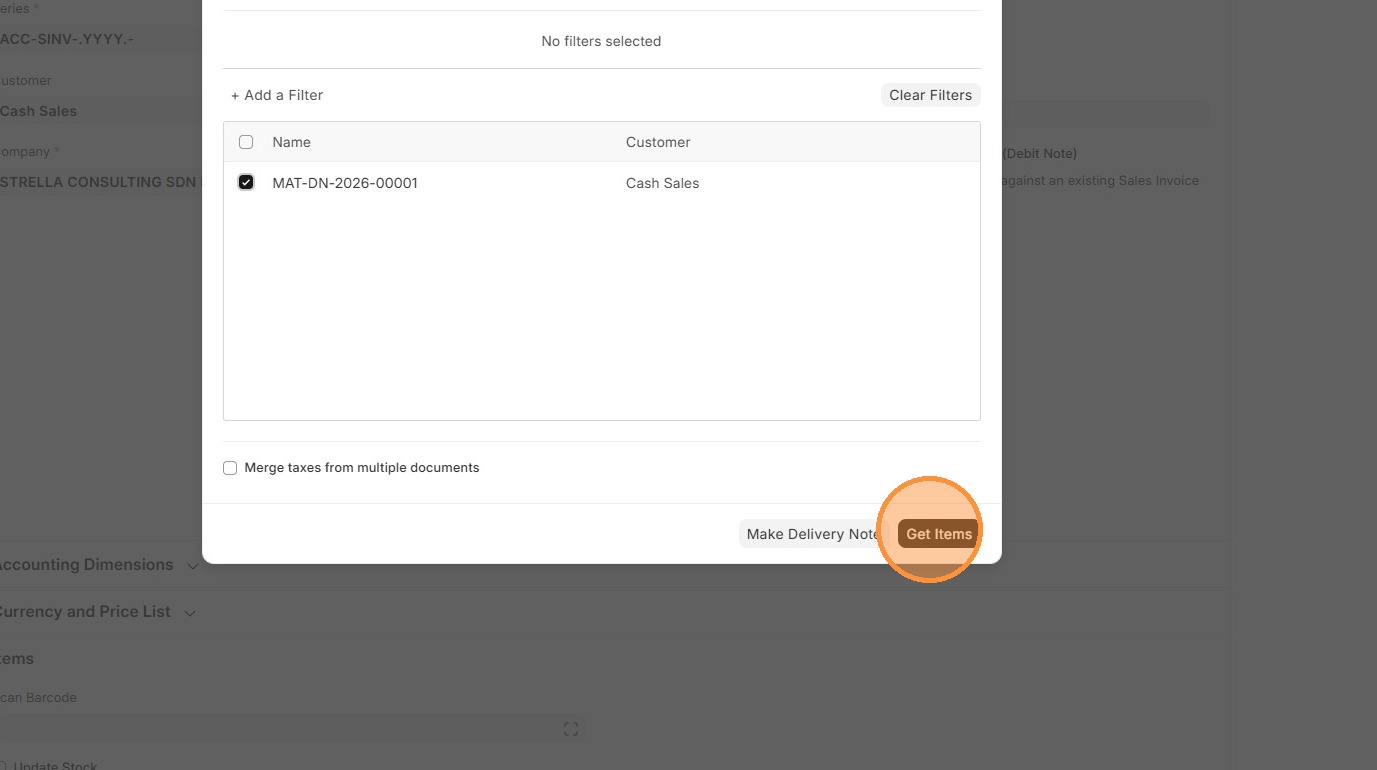
33. Click "Get Items"
34. Verify that "Tax Category" and "Sales Taxes and Charges" matches Delivery Order.
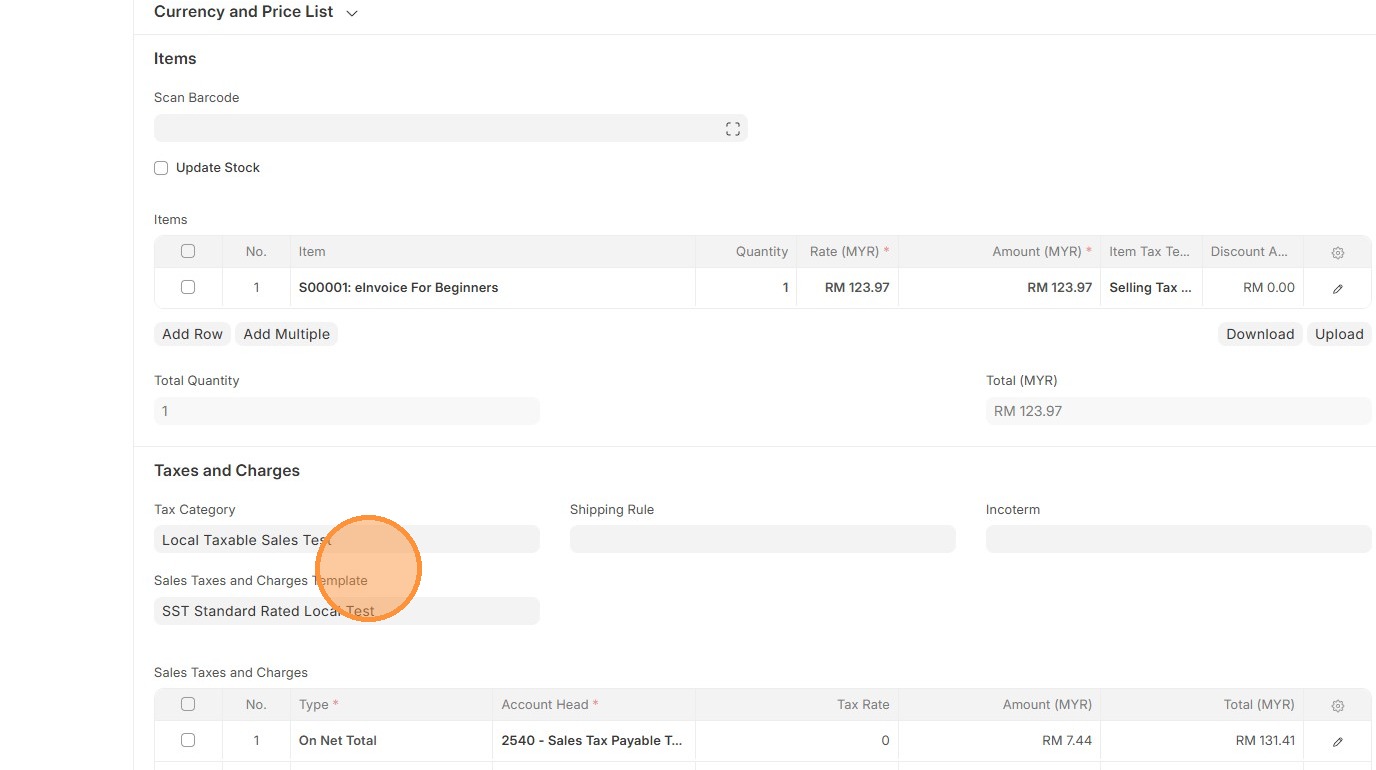
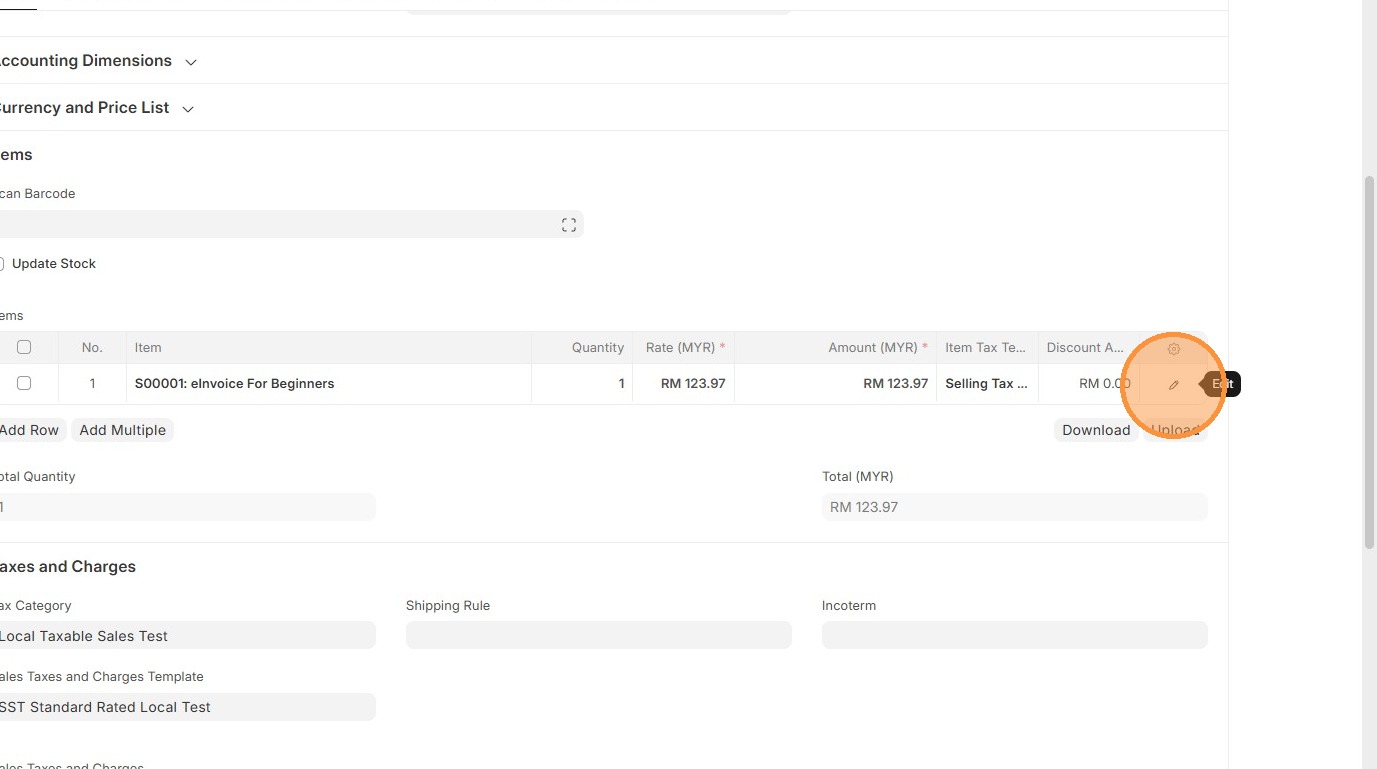
35. Click "Edit".
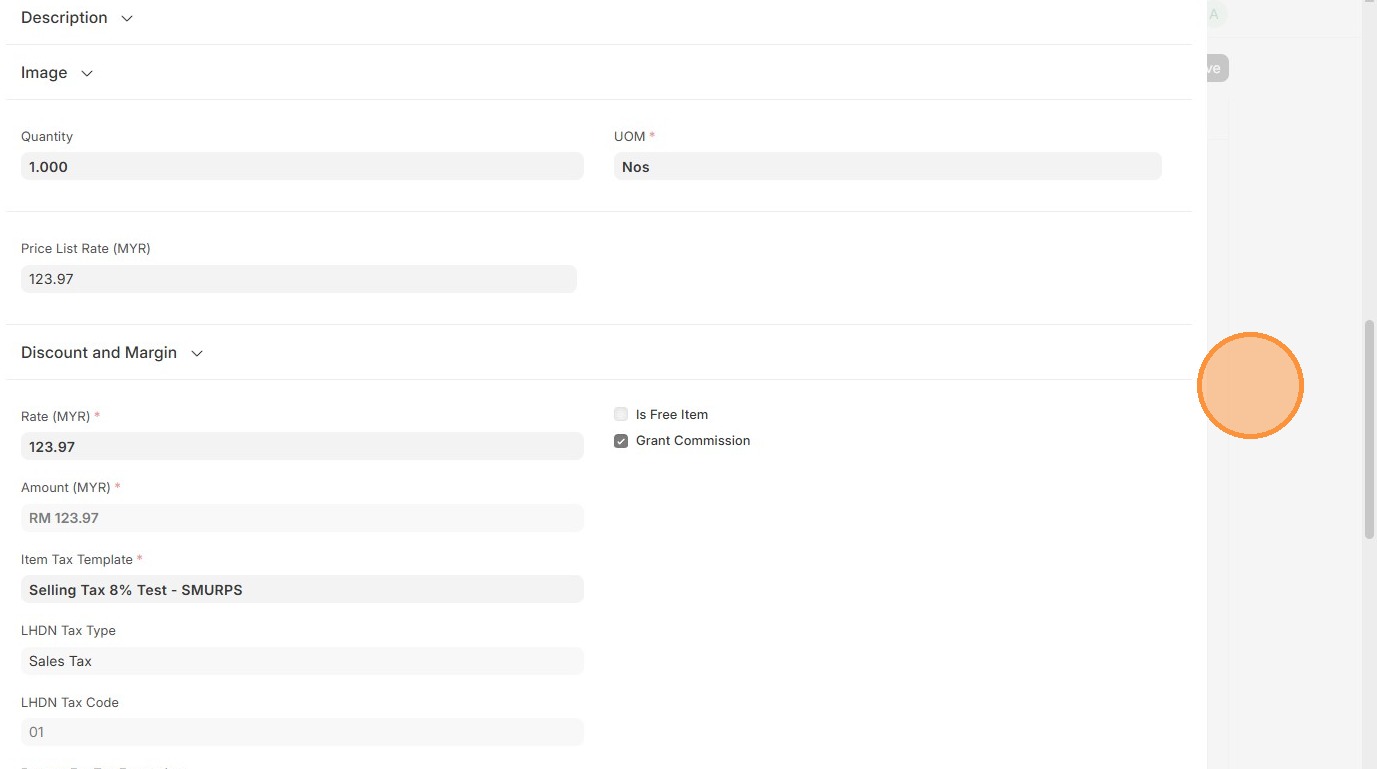
36. Verify "Item Tax Template"
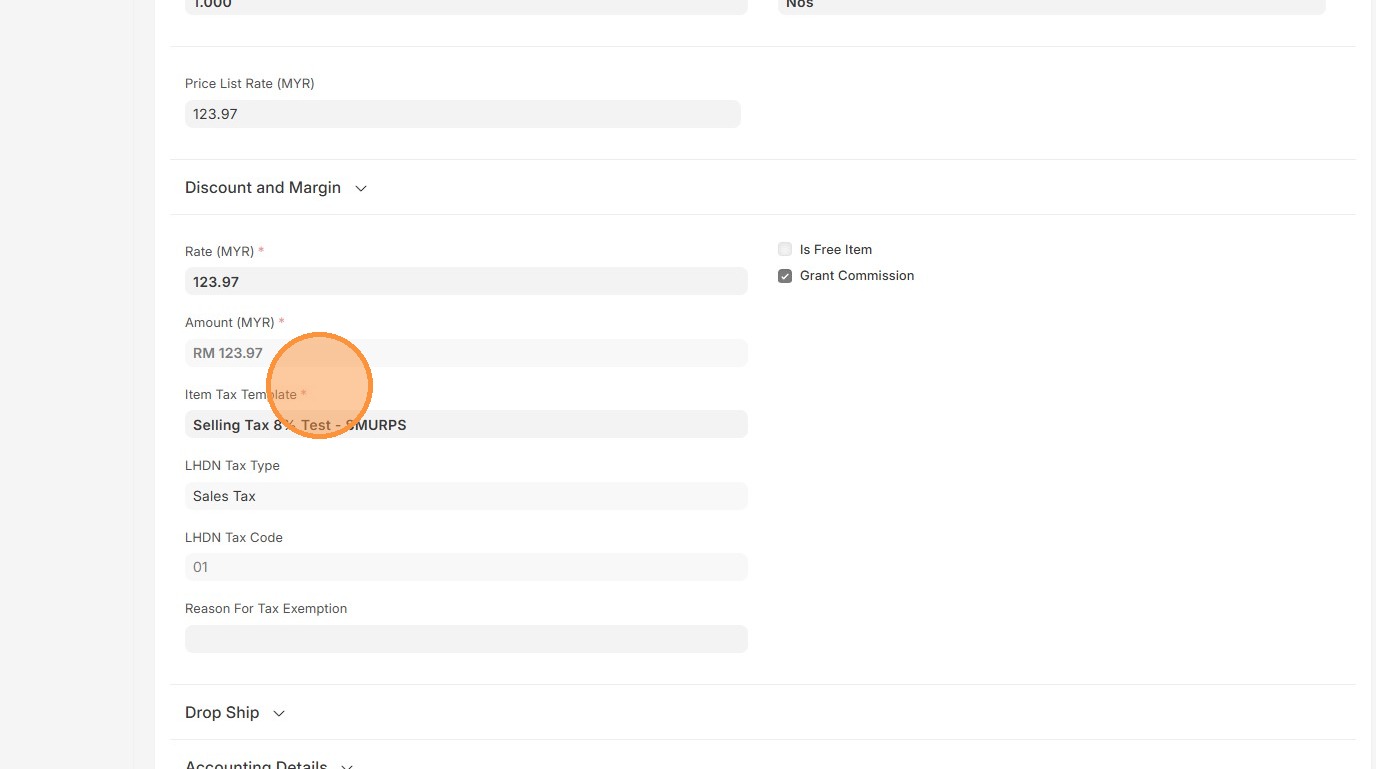
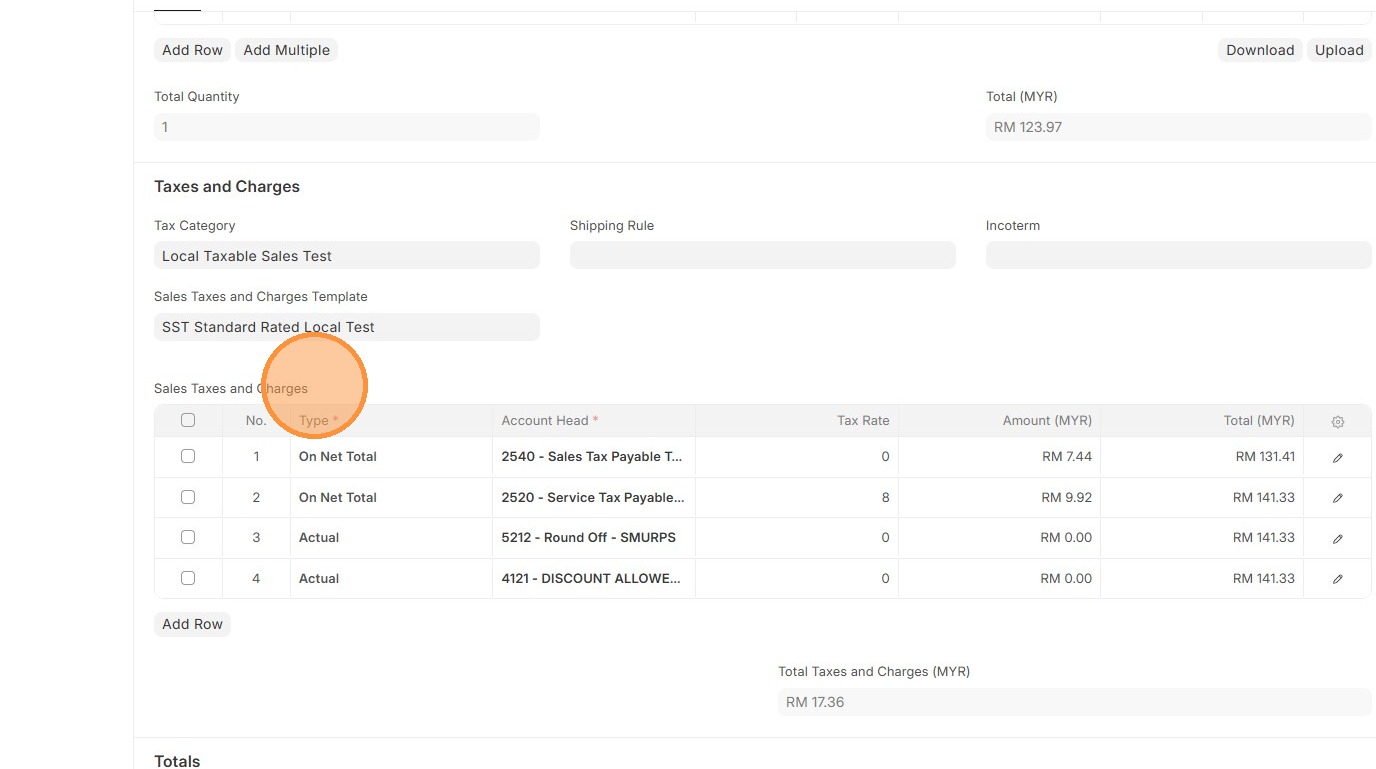
37. Click here to close pop up.
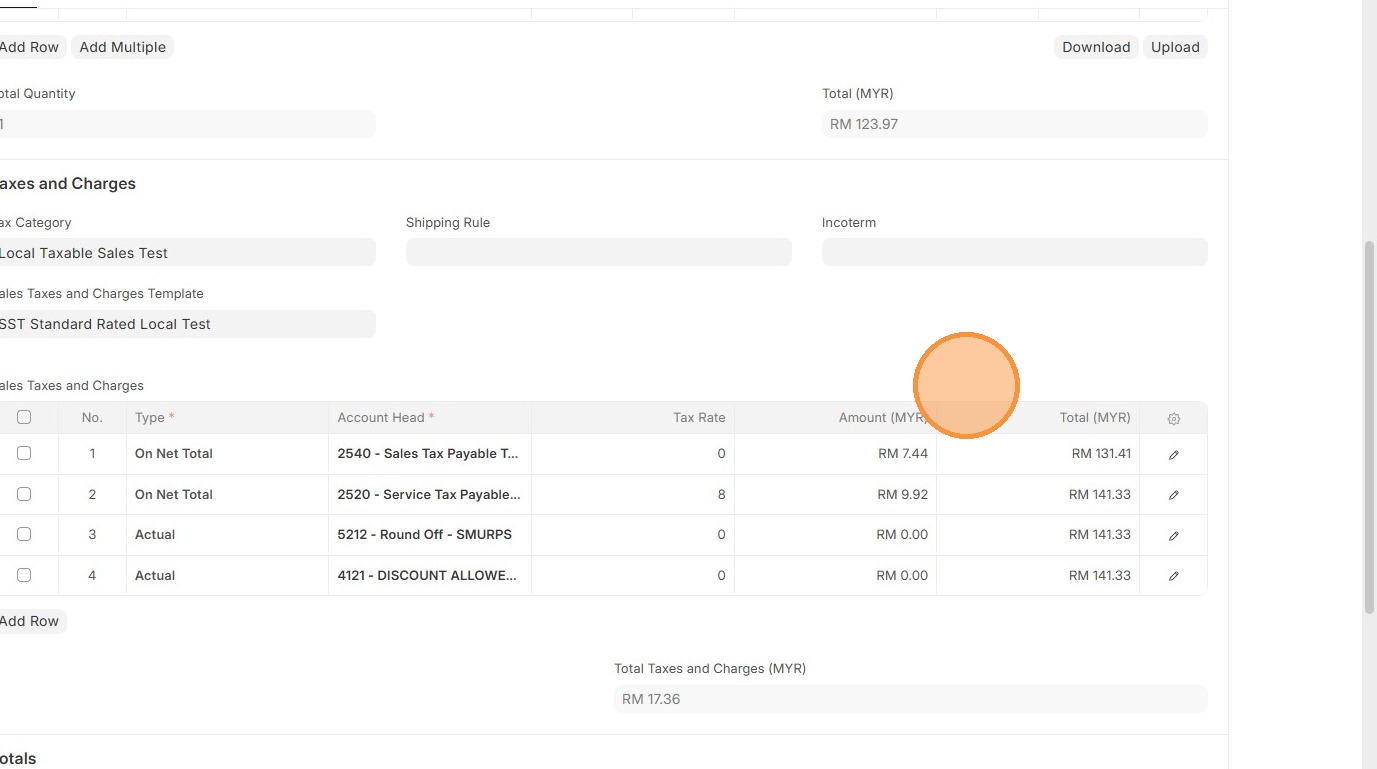
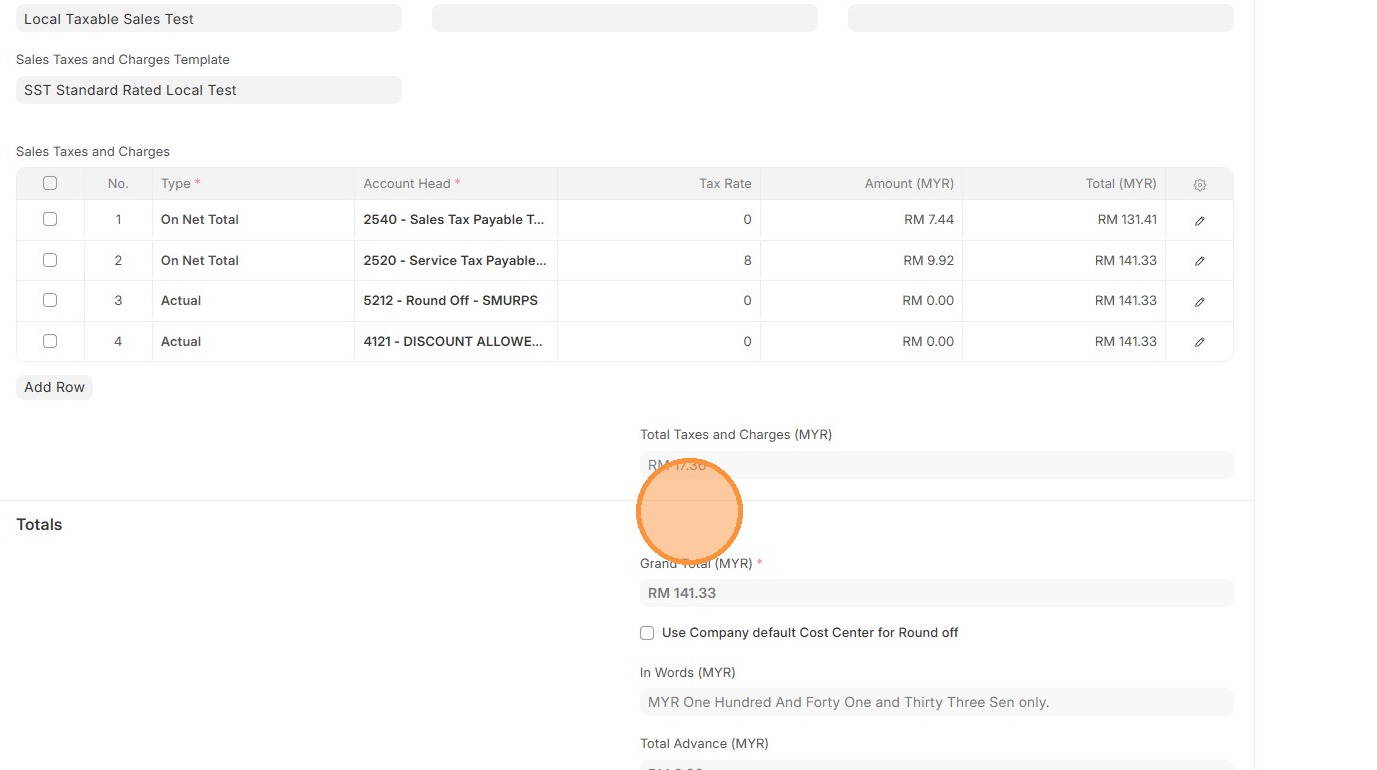
38. Verify that "Sales Taxes and Charges" table matches the one in Delivery Order.
39. Verify the "Amount (MYR)" calculation.
40. Verify that the "Total Taxes and Charges" and "Grand Total" matches the Delivery Order.
41. Click "Save"
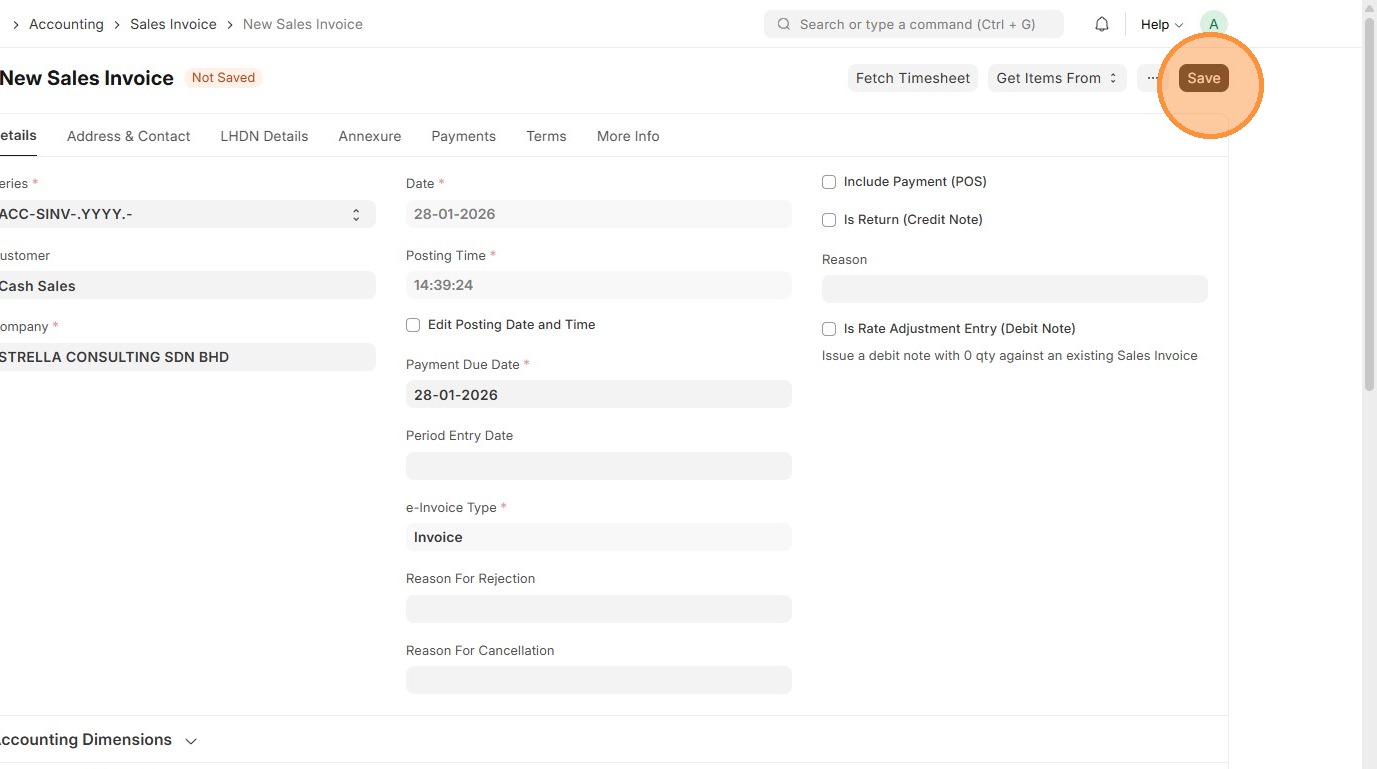
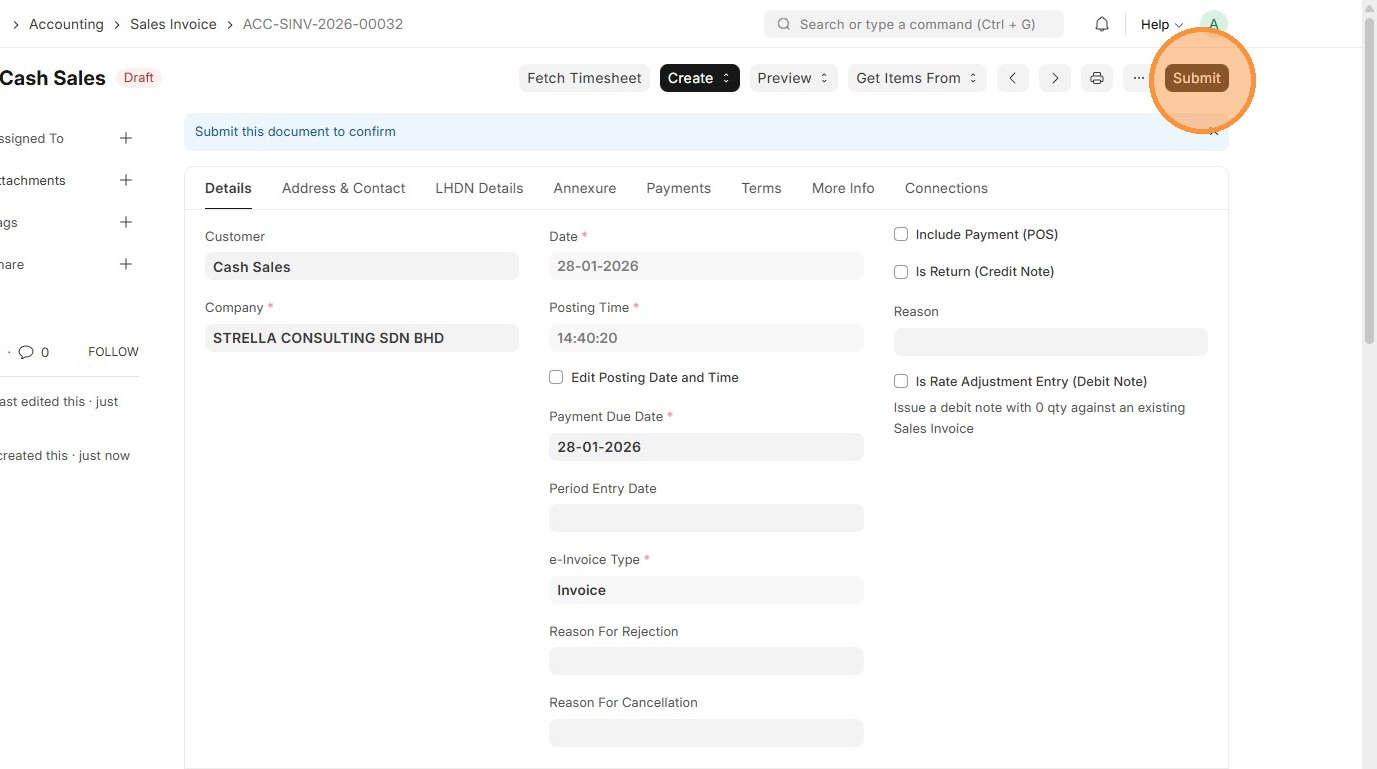
42. Click "Submit"
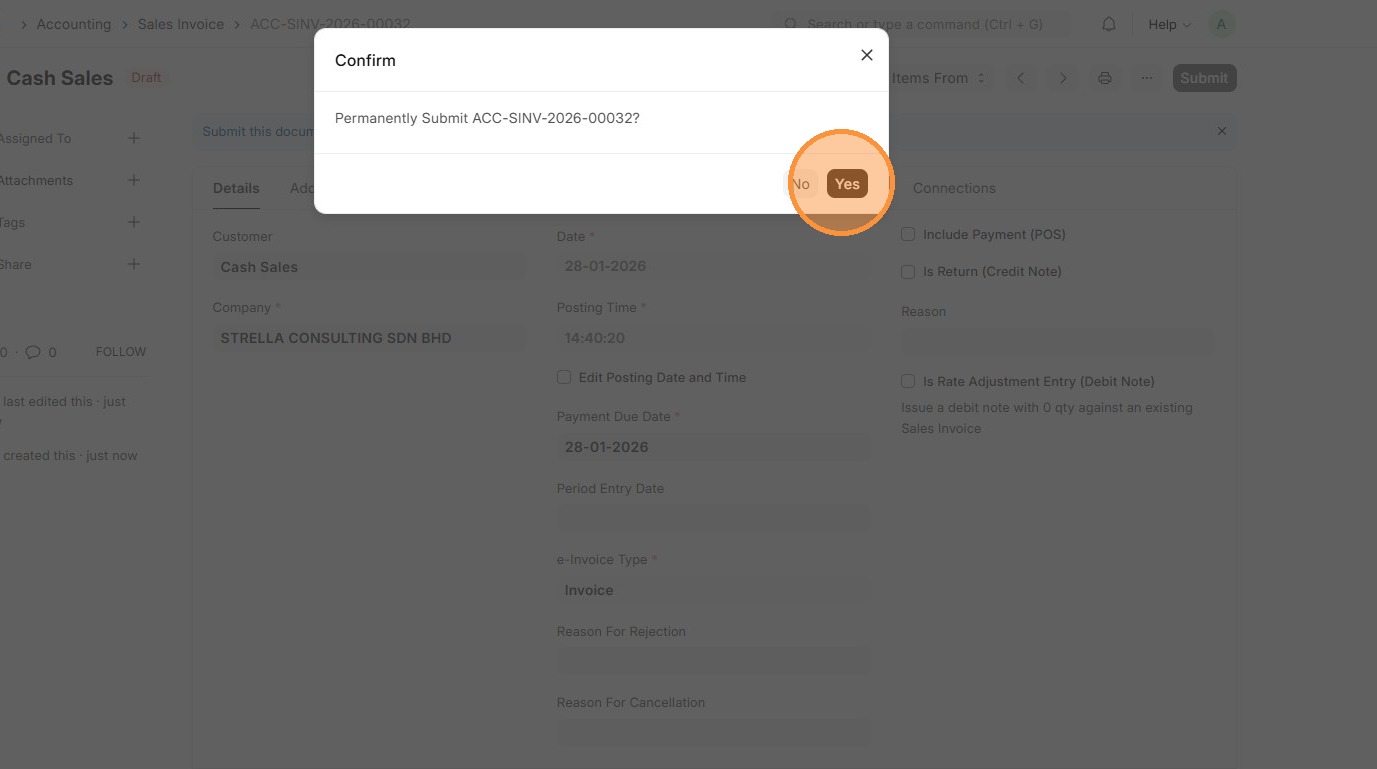
43. Click "Yes"
44. Verify the Sales Invoice ID is created.
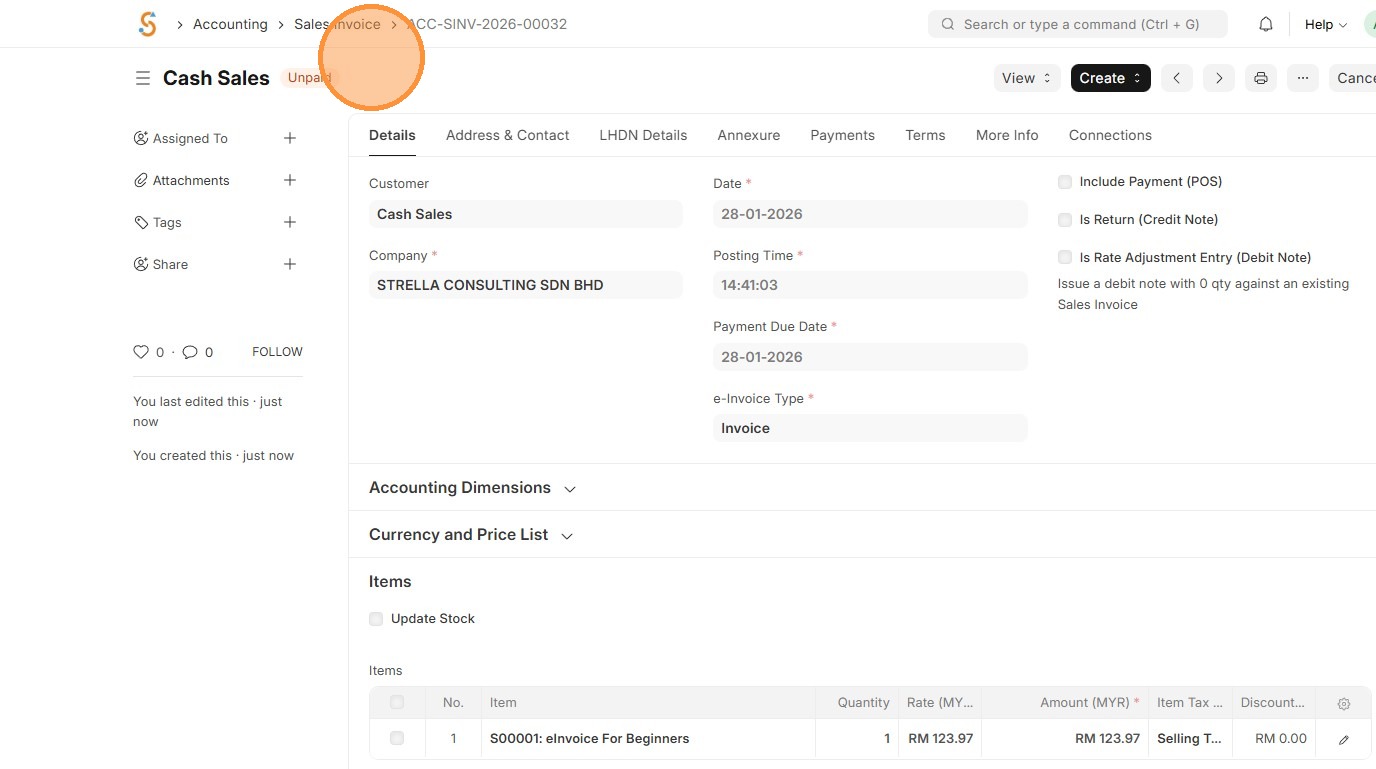
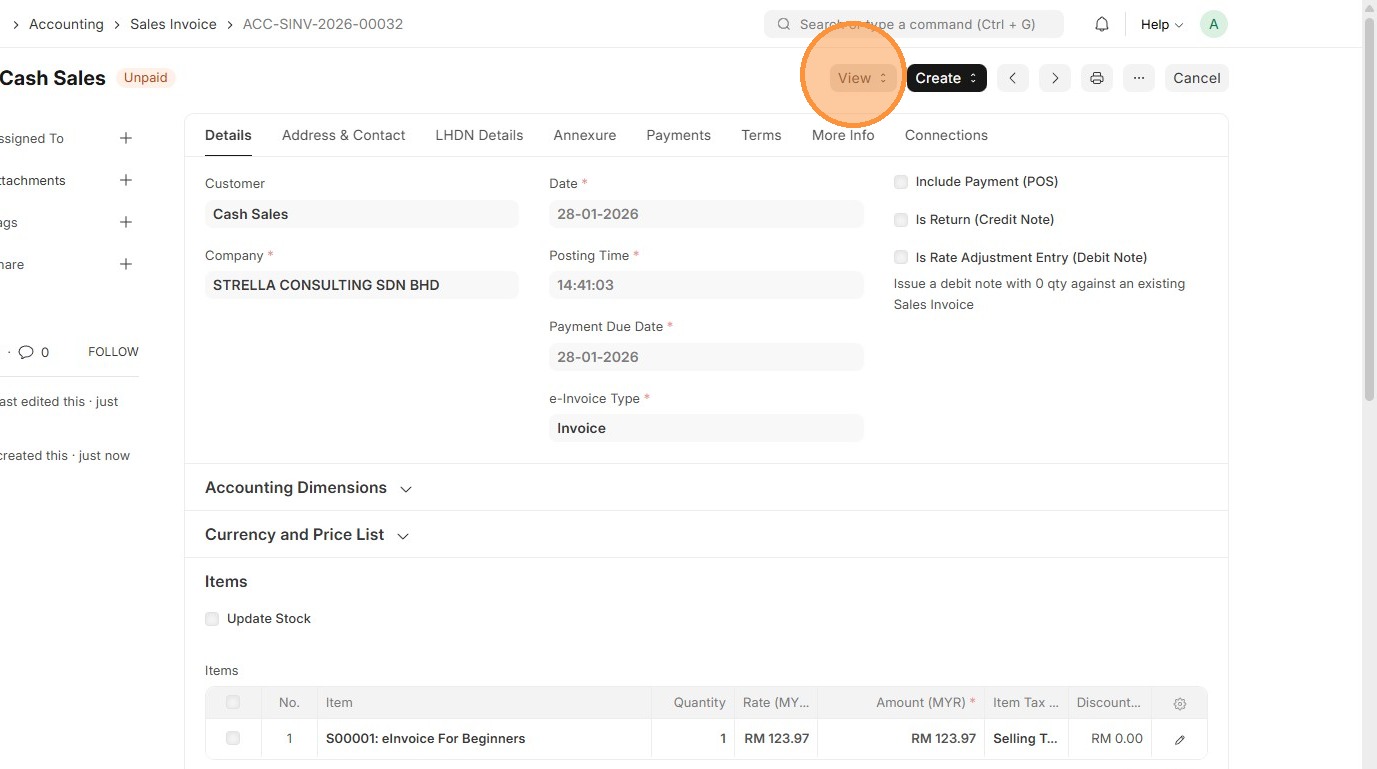
45. Click "View"
46. Click "Accounting Ledger"
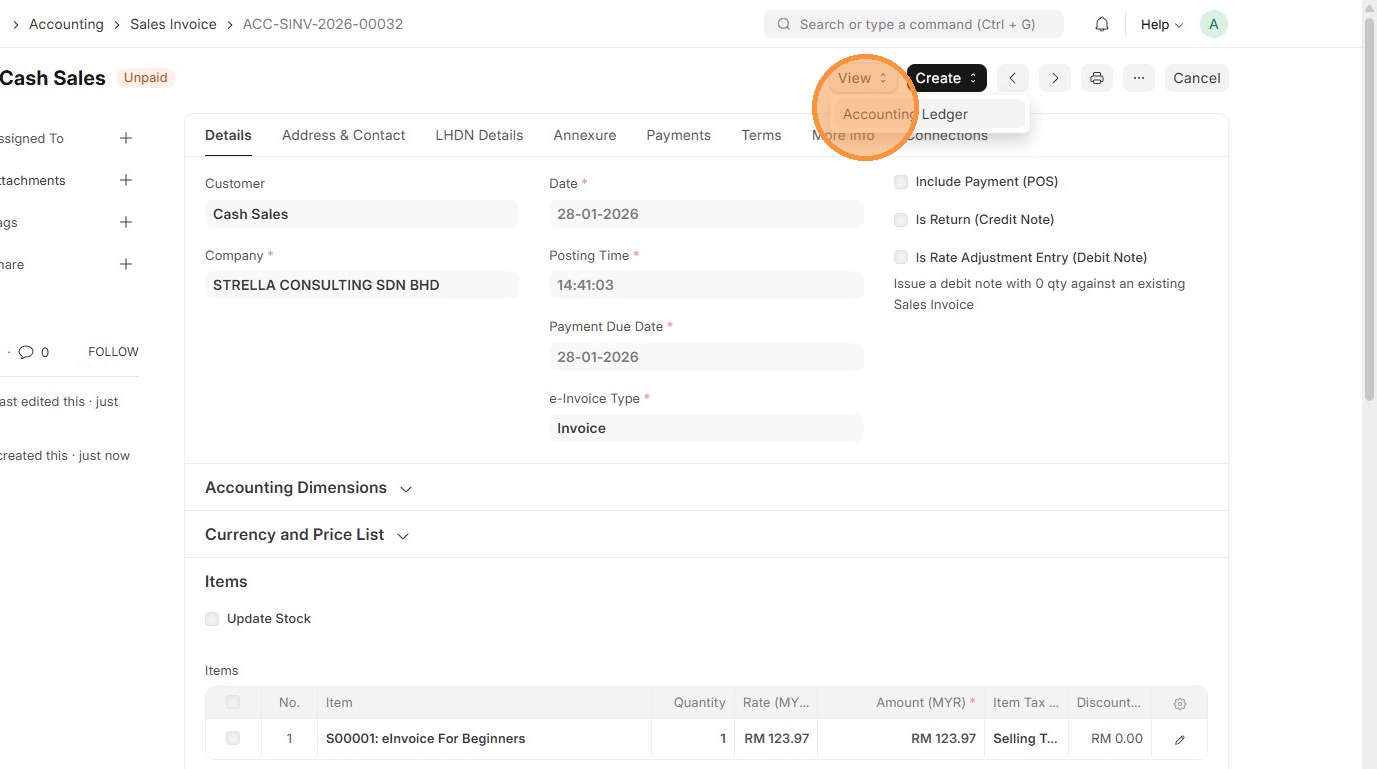
47. Verify the Account Ledger Posting against Sales Invoice.
