Purchase Invoice
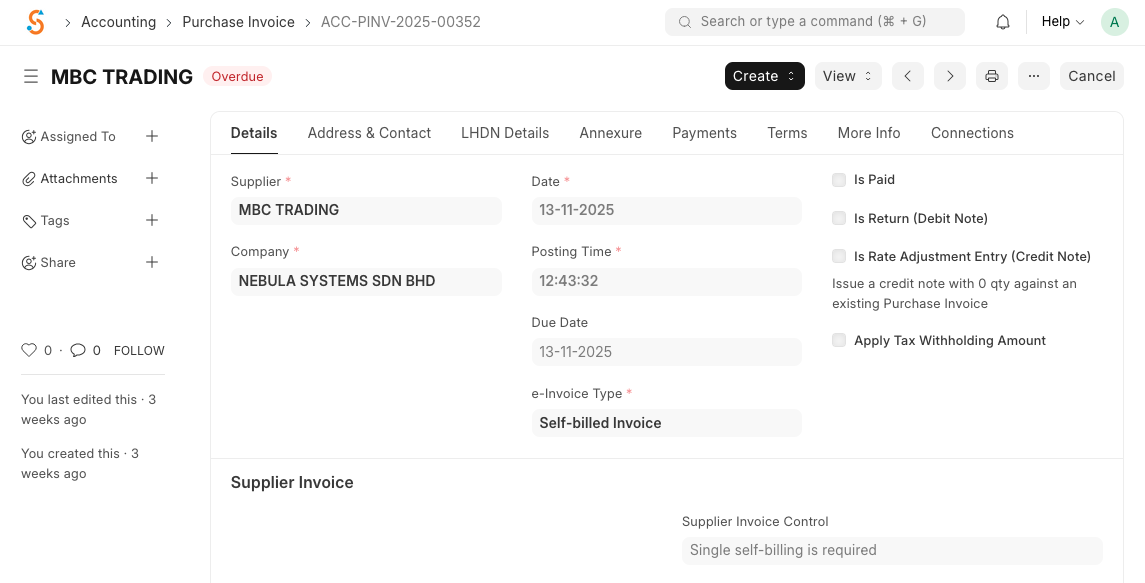
A Purchase Invoice represents a bill received from a supplier. Submitting a purchase invoice accrues expenses and creates a payable entry.
To create a purchase invoice:
- Go to Home → Accounting → Accounts Payable → Purchase Invoice and click New.
- Select the Supplier; default address and payment terms will be loaded.
- Set the Posting Date and Due Date.
- Add items and quantities; rates and taxes are fetched from the supplier’s price list.
- Save and Submit to record the liability. The invoice status will change from Draft to Submitted. If you tick Is Paid, a payment entry will be created automatically.
- To record a return to a supplier, tick Is Return (Debit Note) and link the original purchase invoice.
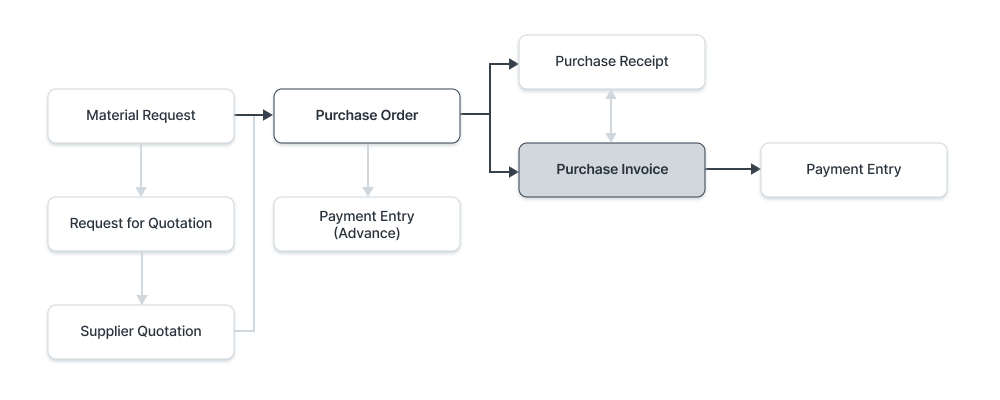
The following process flow diagram shows the typical purchasing process: Material Request → Purchase Order → Purchase Receipt → Purchase Invoice → Payment Entry. You can hold or block a purchase invoice using the Hold Invoice button if there are issues such as quality inspection failures or credit limits.
No comments to display
No comments to display